Steps To Set Up App Based 2fa On Twitter

Secure Your Twitter Account: A Comprehensive Guide to Setting Up App-Based Two-Factor Authentication (2FA)
Two-factor authentication (2FA) is a critical security layer that significantly reduces the risk of unauthorized access to your online accounts. For Twitter, enabling app-based 2FA is a robust method to protect your sensitive information, direct messages, and overall presence on the platform. Unlike SMS-based 2FA, which can be vulnerable to SIM-swapping attacks, app-based 2FA relies on a dedicated authenticator application, generating time-based one-time passwords (TOTPs) that are much more secure. This guide provides a detailed, step-by-step walkthrough for setting up app-based 2FA on your Twitter account, ensuring maximum protection.
To begin the process of implementing app-based 2FA on Twitter, you must first download and install a compatible authenticator application on your smartphone or tablet. Several reputable options are available across both iOS and Android operating systems. Popular choices include Google Authenticator, Microsoft Authenticator, Authy, and Duo Mobile. Each of these applications serves the same fundamental purpose: to generate unique, time-sensitive codes that you will use in conjunction with your Twitter password to log in. Before proceeding with Twitter’s setup, ensure you have one of these applications installed and that it is functioning correctly. Familiarize yourself with its interface, particularly how it displays the generated codes and how frequently they refresh (typically every 30-60 seconds). For optimal security, consider setting up your authenticator app with a strong PIN or biometric lock to prevent unauthorized access to the app itself. This adds an extra layer of protection for the codes it generates, safeguarding your Twitter account even if your device falls into the wrong hands.
Once your chosen authenticator application is installed and ready, navigate to your Twitter account settings. Log in to your Twitter account through either the web browser or the mobile application. Locate the "Settings and Support" option, which is typically found by clicking on your profile picture or the "More" tab, depending on your interface. Within the "Settings and Support" menu, find and select "Settings and privacy." This will lead you to a comprehensive list of configurable options for your account. Within the "Settings and privacy" section, you need to find the security-related settings. Look for a tab or section labeled "Security and account access" or something similar. This is where all the security features, including password management, login activity, and 2FA, are consolidated. Click on this section to access the various security controls for your Twitter account.
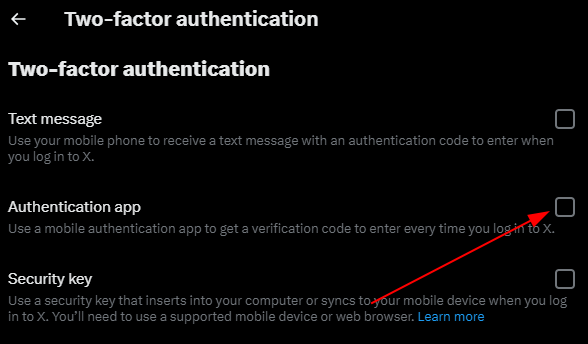
Within the "Security and account access" menu, you will find the option to manage your two-factor authentication. Click on "Security" and then on "Two-factor authentication." Twitter will then present you with different options for enabling 2FA. You will typically see options such as "Text message," "Security key," and "Authenticator app." Select the "Authenticator app" option to proceed with setting up app-based 2FA. This choice signals to Twitter that you intend to use a third-party application to generate your security codes, bypassing the less secure SMS method. Clicking on "Authenticator app" will initiate the setup process, guiding you through the necessary steps to link your chosen authenticator application to your Twitter account.
After selecting the "Authenticator app" option, Twitter will present you with a QR code and a setup key. This is the crucial step where you link your authenticator app to your Twitter account. Open your authenticator application and look for an option to "Add account" or "Scan a QR code." Most authenticator apps will have a prominent button or menu item for this purpose. If using the camera on your smartphone, point it at the QR code displayed on your Twitter setup screen. The authenticator app should automatically scan and recognize the code. If scanning the QR code is not feasible, or if you encounter any issues, Twitter also provides a "setup key" or "manual entry" option. This is a long string of characters that you can manually type into your authenticator app. Within your authenticator app, select the option for manual entry and carefully type in the provided setup key.
Once the QR code is scanned or the setup key is entered, your authenticator application will begin generating a time-based one-time password (TOTP) specifically for your Twitter account. You will see a new entry appear in your authenticator app, often labeled with "Twitter" and your username or email address, along with a constantly refreshing six-digit code. To confirm the setup and activate app-based 2FA on your Twitter account, you will need to enter the current code displayed in your authenticator app into the designated field on the Twitter setup screen. This verifies that you have successfully linked your app to your account. Ensure you enter the code accurately and within the refresh interval. Once the code is accepted, Twitter will confirm that app-based 2FA has been successfully set up.
Upon successful setup of app-based 2FA, Twitter will provide you with backup codes. These codes are extremely important and should be treated with the same security as your password. They serve as a fallback mechanism in situations where you cannot access your authenticator app. Examples include losing your phone, having your phone’s battery die, or being in an area with no internet connectivity. It is highly recommended to download and print these backup codes, or save them in a secure, offline location. Do not save them digitally in a location that is easily accessible or connected to the internet without robust encryption. A good practice is to store them in a physical safe or a password-protected document on an encrypted USB drive, kept separately from your phone. If you lose your backup codes, and also lose access to your authenticator app, you may permanently lose access to your Twitter account, as Twitter’s recovery process can be lengthy and may not always guarantee regaining access.
After enabling app-based 2FA, Twitter will require you to use it whenever you log in from a new or unrecognized device or browser. When you attempt to log in with your username and password, you will be prompted to enter the current six-digit code from your authenticator app. This is the moment your app-based 2FA comes into play. Navigate to your authenticator app, find the Twitter code, and enter it into the prompt on the Twitter login screen. The code changes every 30-60 seconds, so you need to use the one currently displayed. This dual-layer verification ensures that even if someone obtains your password, they cannot log into your account without also having physical access to your authenticated device and the authenticator app.
To enhance your account’s security and provide a seamless experience, Twitter allows you to "trust" specific devices or browsers. When you log in from a trusted device or browser, and successfully complete the 2FA verification, you can choose to have Twitter remember that device. This means that subsequent login attempts from that same trusted device or browser will only require your password, bypassing the authenticator app code. This is convenient for your primary devices but should be used judiciously. For any new or shared devices, always opt out of trusting them to maintain the highest level of security. Regularly review the list of trusted devices in your Twitter security settings and remove any that you no longer use or recognize.
Regularly reviewing your security settings and login activity is a proactive approach to maintaining account security. Within your Twitter account’s "Security and account access" settings, you can find options to view your login history. This feature allows you to see a list of all devices and locations from which your account has been accessed. It is crucial to periodically check this information for any suspicious or unrecognized login attempts. If you spot any activity that you do not recognize, immediately revoke access for that device or session, and consider changing your Twitter password. This vigilance can help you detect and respond to potential security breaches quickly. Furthermore, ensure that your connected applications are still necessary and that you have granted them only the permissions they absolutely require.
For individuals managing multiple social media accounts, considering a centralized authenticator app is a practical approach. Many authenticator applications, such as Authy and Microsoft Authenticator, support managing multiple accounts from different services within a single app. This eliminates the need to juggle multiple individual authenticator apps. When setting up 2FA for Twitter, and for other platforms like Google, Facebook, or your bank, you can add each account to your chosen authenticator app. This streamlined approach simplifies the 2FA process, making it less cumbersome while still providing robust security for all your online presences. Just remember to secure the authenticator app itself with a strong PIN or biometric lock.
In conclusion, setting up app-based two-factor authentication on Twitter is an indispensable step for safeguarding your digital identity and personal information. By following this comprehensive guide, you can effectively implement this advanced security measure, significantly reducing the risk of account compromise. Remember to download a reliable authenticator app, meticulously follow the linking process with QR codes or setup keys, securely store your backup codes, and remain vigilant by regularly reviewing your security settings and login activity. Prioritizing app-based 2FA transforms your Twitter account from a potential vulnerability into a secure bastion, allowing you to engage on the platform with greater confidence and peace of mind. This proactive approach to cybersecurity is not just recommended; it is essential in today’s digital landscape.