Senator Rick Scott Claims Far-Left Progressives Dictate Democratic Party Direction Ahead of Midterm Elections


As political strategists and party leaders converge on Dallas, Texas, for a high-stakes legislative convention, the battle lines for the upcoming midterm elections are crystallizing. Against a backdrop of persistent economic anxieties, geopolitical tensions, and legislative gridlock, Republican lawmakers are working to energize their base and defy historical electoral trends. Central to the GOP strategy is a concerted effort to reframe the national political landscape by arguing that the institutional leadership of the Democratic Party has been sidelined by its ideological fringe.
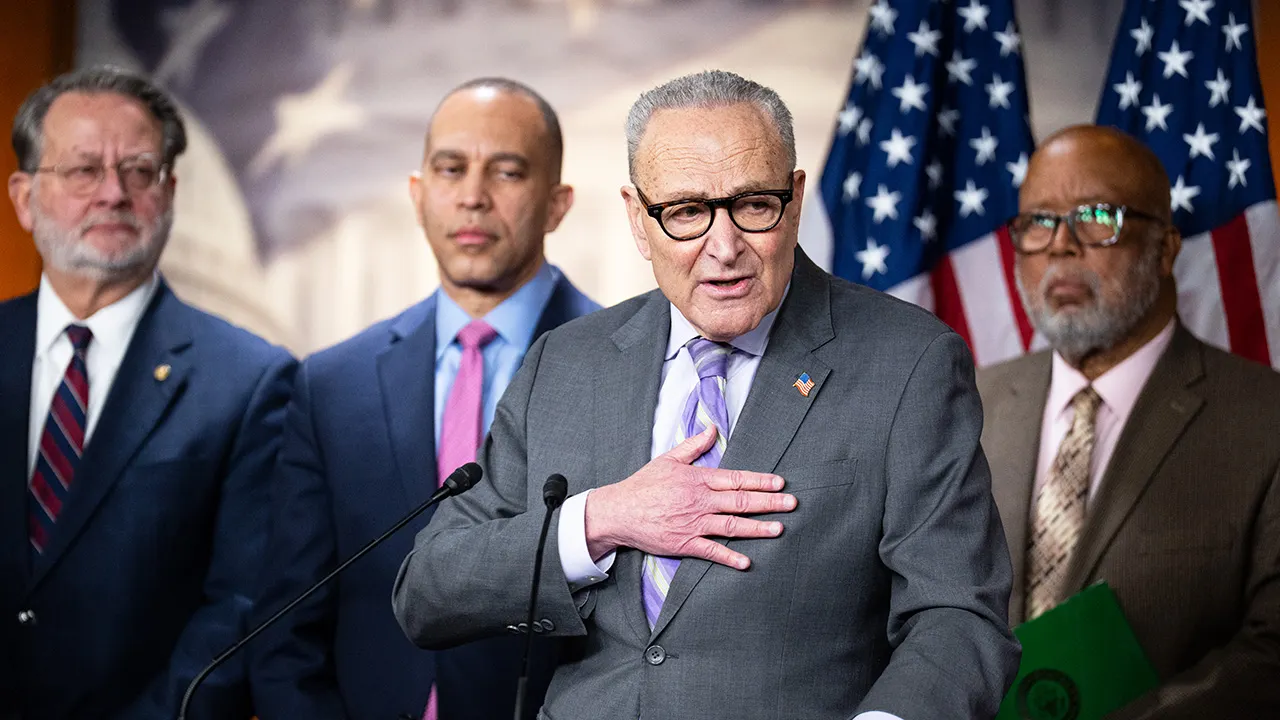
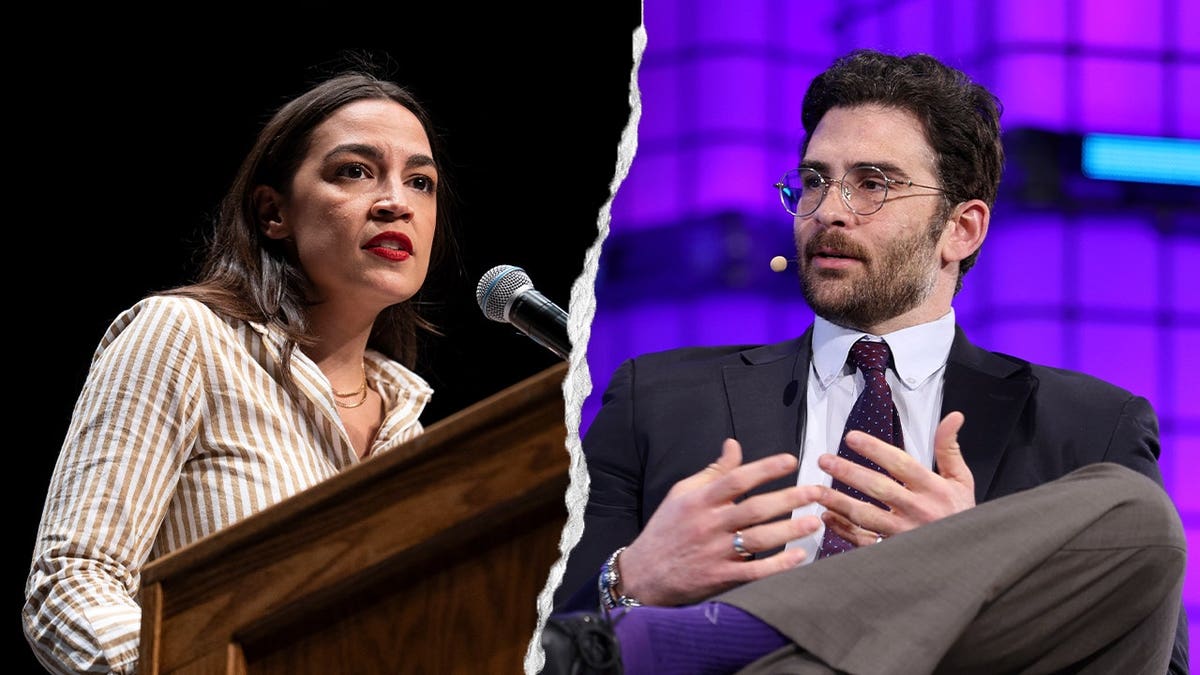
During an exclusive interview in Dallas, Senator Rick Scott, R-Fla., asserted that congressional leaders—namely Senate Minority Leader Chuck Schumer of New York and House Minority Leader Hakeem Jeffries of New York—no longer dictate the platform or trajectory of the Democratic Party. Instead, Scott contended that the party’s policy agenda and public messaging are decisively shaped by progressive figures both inside and outside of federal office, explicitly naming political commentator Hasan Piker, Representative Alexandria Ocasio-Cortez, D-N.Y., and New York City Mayor Zohran Mamdani.
The remarks underscore a broader Republican messaging strategy designed to tie vulnerable Democratic candidates across the country to polarizing progressive policies, even as the GOP navigates its own internal policy debates and external economic headwinds ahead of November.
The Republican Strategy in Dallas: Defying Midterm History
Republicans have gathered in Dallas with a singular, formidable mission: to break the historical curse that typically plagues the party in power during a midterm election cycle. Historically, the party occupying the White House experiences significant legislative losses in the first midterm elections following a presidential victory, driven by voter fatigue, changing political dynamics, and referendums on executive performance.
To counteract these trends, GOP leadership is utilizing the convention to present a unified front, emphasizing the urgency of retaining majorities in both the United States Senate and the House of Representatives. Senator Scott, a former chairman of the National Republican Senatorial Committee (NRSC), expressed confidence that Republicans would outperform historical expectations, pointing to candidate recruitment and what he described as a fundamentally flawed Democratic platform.
"Let’s be clear, the leader of the Democrat Party is not Schumer, it’s not Jeffries," Scott told reporters and analysts. "It’s Hasan Piker, it is AOC and Zohran Mamdani."
Scott argued that while Democratic congressional leaders may attempt to moderate their public-facing rhetoric to appeal to suburban swing voters, the ideological energy and financial backing of the party remain anchored to its progressive wing. According to GOP strategists, this dynamic creates vulnerabilities for Democrats running in competitive purple states and districts, where voters may reject policies associated with democratic socialism or cultural flashpoints.
Framing the Debate: Socialism, Social Policy, and Economic Anxieties
The ideological battle lines drawn by Republican leadership center heavily on cultural and economic debates. Scott pointed to contentious social issues, such as regulations governing athletics and public accommodations, alongside fiscal debates regarding taxation and federal spending, to illustrate the stark contrast between the two parties.
"They’re going to say, ‘Gosh, we want men to play in women’s sports, to destroy women’s sport,’" Scott said, referencing ongoing debates over Title IX and athletic eligibility. "They can talk about socialism, how they want to kill all the capitalists."
To emphasize the severity of these policy differences, Scott employed stark rhetoric regarding the implications of progressive economic models, drawing comparisons to historical political collapses in South America.
"I tell people, you go vote for a Democrat, which is now a socialist, right? Then you better buy a bunch of guns," Scott continued. "Because you can vote socialism in, ask the people in Venezuela, but guess what? You can’t get rid of it without guns."
Such framing highlights the Republican Party’s reliance on cultural conservatism and anti-socialist messaging to motivate its core supporters. However, political analysts note that the efficacy of this strategy depends heavily on how effectively Republicans can balance these cultural arguments with voters’ immediate economic concerns.
Headwinds and Economic Realities Facing the GOP
Despite the energetic atmosphere in Dallas, the Republican Party faces substantial political challenges as the November midterms draw closer. The electoral map is complicated by a confluence of domestic and international pressures that threaten to complicate the GOP’s legislative defense.
Foremost among these challenges are stubborn economic pressures. Despite broader macroeconomic indicators, many American households continue to grapple with elevated costs at retail checkout counters and gas pumps. Inflationary persistence has consistently remained a primary concern for voters, providing an opening for the opposition party to challenge the incumbent administration’s economic stewardship.
Compounding these domestic economic hurdles are foreign policy and trade complications. The ongoing conflict involving Iran has introduced volatility into global energy markets, directly impacting fuel prices domestically. Furthermore, recent trade disputes—including newly implemented tariffs and retaliatory measures involving Canada—have placed pressure on various sectors of the U.S. economy, occasionally creating friction between trade-reliant business interests and the administration’s protectionist trade agenda.
These economic and geopolitical variables complicate the traditional midterm playbook. While midterm elections frequently serve as a referendum on the party in power, the presence of cross-cutting issues like trade policy and international conflict means that neither party holds a monopoly on voter frustration.
The Centrality of President Donald Trump
A cornerstone of the Republican convention in Dallas is the explicit acknowledgment that, regardless of who appears on local ballots, the midterm elections represent a referendum on the administration of President Donald Trump.
President Trump is scheduled to deliver a major address on Wednesday evening, coinciding with the opening week of the National Football League season—a timing strategy designed to maximize viewership and focus national attention on the GOP platform. Party leaders are using the convention to communicate a clear, urgent warning to the conservative base: a loss of Republican control in either chamber of Congress would effectively paralyze the executive branch’s policy agenda.
"There’s no question the Trump agenda is on the ballot," Scott emphasized. "If you want the Trump agenda accomplished, we have to control the House, we have to control the Senate."
Furthermore, Republican leaders have argued that a Democratic takeover of the legislative branch would immediately result in aggressive oversight and institutional confrontation. Scott warned convention attendees that a Democratic House majority would pursue immediate retaliatory measures against the executive branch, asserting, "If the Democrats control the House, they’re gonna impeach him for combing his hair the wrong way. So we’ve gotta control the House and we gotta control the Senate."
Candidate Quality and State-Level Battlegrounds
Beyond national messaging and presidential politics, the battle for control of the Senate hinges on specific, highly competitive state-level races. Both parties have invested heavily in recruitment and campaign infrastructure to secure narrow majorities in the upper chamber.
Scott pointed to candidate quality as a decisive advantage for Republicans heading into the fall. Drawing a contrast with Democratic contenders, he highlighted specific state races, such as the high-profile Senate battle in Michigan featuring Democratic candidate Abdul El-Sayed. Scott criticized El-Sayed’s legislative record and public positions, arguing that voters in key swing states would reject candidates whose platforms lean heavily into progressive activism.
"The reason is we have a better message and we have great candidates," Scott said. "If you look at our Senate candidates, I mean, how would you like to be out and defend Abdul El-Sayed’s record of being antisemitic and hating this country."
Democratic strategists, conversely, have pushed back against such characterizations, arguing that Republican candidates are increasingly tethered to controversial policy positions of their own—particularly regarding reproductive rights, federal spending cuts, and executive overreach. Democrats maintain that voter mobilization around bodily autonomy and the protection of democratic institutions will counterbalance the GOP’s cultural and economic attacks.
Implications for the November Midterms
As the convention in Dallas concludes and candidates pivot toward the final months of campaigning, the political landscape remains fluid. The debate over who truly controls the ideological direction of the Democratic Party—institutional leadership or its progressive wing—will likely remain a central theme of Republican messaging through November.
For the GOP, the challenge lies in successfully linking vulnerable Democratic incumbents to polarizing national figures while simultaneously offering viable solutions to everyday economic concerns. For Democrats, the objective is to decentralize the national culture wars, refocus the electorate on local economic security and healthcare, and leverage voter enthusiasm around key social issues to defy historical precedent.
With control of both the House and the Senate hanging in the balance, the coming months will test the discipline, messaging efficacy, and organizational strength of both political parties in an increasingly polarized electorate.
Related posts: