Tag Sql Server Management Studio

SQL Server Management Studio: A Comprehensive Guide to SSMS Functionality and Optimization
SQL Server Management Studio (SSMS) stands as the indispensable, integrated environment for managing any SQL Server infrastructure, from development and testing to production. Its comprehensive feature set empowers database administrators (DBAs), developers, and analysts to perform a vast array of tasks efficiently. This article will delve into the core functionalities of SSMS, exploring its components, key features, and best practices for leveraging its power to optimize SQL Server management. Understanding SSMS is not merely about knowing its buttons; it’s about mastering its capabilities to ensure robust database performance, security, and maintainability.
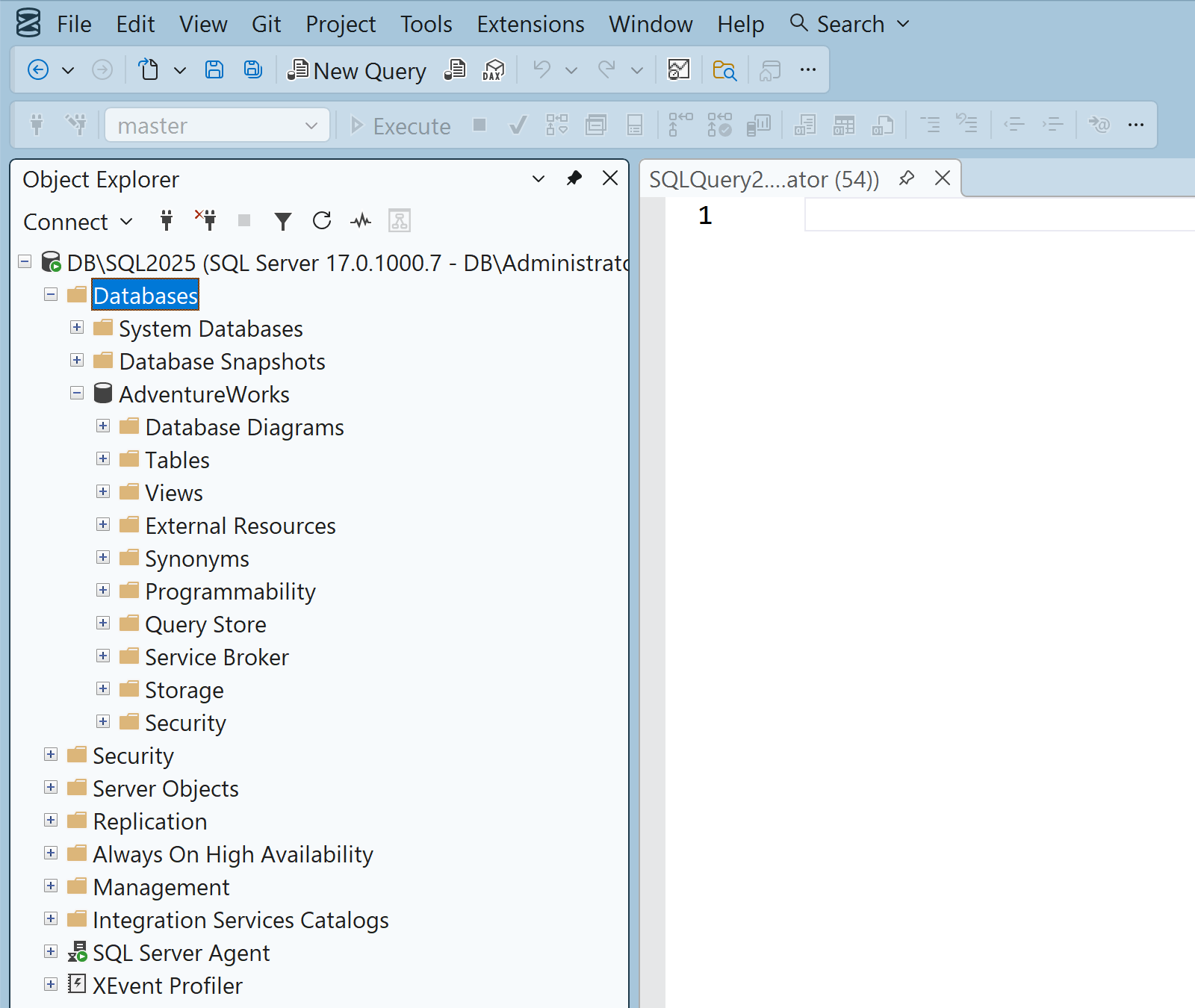
At its heart, SSMS is a client application that connects to SQL Server instances. Its graphical interface simplifies complex database operations that would otherwise require intricate Transact-SQL (T-SQL) scripting. The primary interface components include the Object Explorer, the Query Editor, and the Solution Explorer. The Object Explorer provides a hierarchical view of all database objects within a connected SQL Server instance, allowing for easy navigation and manipulation of databases, tables, views, stored procedures, and other elements. The Query Editor is the workspace where users write, execute, and debug T-SQL queries. This is where the bulk of database interaction occurs, from simple data retrieval to complex data modification and procedural code development. The Solution Explorer, though less frequently used by beginners, is invaluable for organizing and managing larger development projects, allowing users to group scripts, queries, and other project-related files.
The Query Editor is a cornerstone of SSMS. Its features are designed to enhance productivity and accuracy. Syntax highlighting makes T-SQL code more readable by distinguishing keywords, data types, and identifiers. Intellisense, a powerful code completion engine, suggests keywords, table and column names, and even function calls as you type, significantly reducing typing errors and speeding up query development. The ability to execute queries and view results directly within the editor is fundamental. SSMS supports various execution modes: "Execute" runs the entire script, while "Execute with Client-Side Statistics" provides detailed performance metrics for query execution. For granular control, users can select specific statements for execution. The results pane displays query output, which can be saved to various formats, including CSV, Excel, and XML, facilitating data analysis and reporting. Furthermore, the Query Editor offers debugging capabilities, allowing developers to set breakpoints, step through code, and inspect variable values to identify and resolve logical errors in stored procedures and functions.
Beyond the Query Editor, SSMS offers a wealth of tools for database administration. The "New Query" window provides immediate access to the Query Editor, while "New Query to…" allows for specifying the connection to a particular database. The "File" menu offers options to open existing query files, save current work, and manage project files. The "Edit" menu provides standard text editing functionalities such as cut, copy, paste, find, and replace, along with advanced features like outlining, commenting, and block commenting. The "View" menu controls the visibility of various SSMS panes, including Object Explorer, Solution Explorer, Properties Window, and Message Window, allowing users to customize their workspace for optimal workflow. The "Query" menu is specifically dedicated to query execution and management, offering options to execute, cancel, parse, and analyze queries, as well as manage query execution plans. The "Tools" menu is a gateway to a vast array of configuration options, extensions, and specialized utilities within SSMS.
For database management, SSMS excels in tasks related to security. Within the Object Explorer, navigating to the "Security" folder allows for the creation and management of logins, users, roles, and permissions. Creating new logins (server-level principals) and mapping them to database users (database-level principals) is a critical security function. Granting and revoking permissions on specific database objects ensures that users have only the necessary access, adhering to the principle of least privilege. SSMS also simplifies the management of server roles and database roles, allowing for efficient assignment of administrative privileges. Auditing capabilities, accessible through the security settings, enable tracking of database activities for security and compliance purposes.
Performance tuning is another area where SSMS shines. The "Activity Monitor" provides a real-time view of running processes, resource utilization (CPU, memory, I/O), and blocking sessions, enabling DBAs to quickly identify performance bottlenecks. Understanding and interpreting execution plans is paramount for query optimization. SSMS allows users to generate graphical execution plans for T-SQL queries, visually illustrating the steps a query takes to retrieve data, including the cost of each operation and the estimated number of rows. By analyzing these plans, developers can identify inefficient operators (e.g., table scans when an index seek would be more appropriate) and optimize their queries accordingly. SSMS also integrates with SQL Server’s built-in performance monitoring tools, such as Dynamic Management Views (DMVs) and Dynamic Management Functions (DMFs), providing access to detailed runtime information about server performance.
Backup and restore operations, essential for data recovery and business continuity, are seamlessly managed through SSMS. Within the Object Explorer, right-clicking on a database provides options for initiating full, differential, and transaction log backups. Users can specify backup destinations, compression options, and verification settings. Similarly, the restore functionality allows for the recovery of databases from backup files, with options to restore to a specific point in time and manage overwrite settings. SSMS also facilitates the creation and management of database maintenance plans, automating routine tasks like backups, integrity checks, and index maintenance, which are crucial for maintaining database health and performance.
SSMS provides robust tools for database design and development. Users can create new databases, tables, and other objects directly through the graphical interface. The table designer allows for the definition of columns, data types, constraints (primary keys, foreign keys, unique constraints, check constraints), and indexes. For more complex scenarios, T-SQL scripting within the Query Editor offers complete control over object creation and modification. Data manipulation is also straightforward, with options to edit data directly in grid view or via T-SQL statements. The ability to generate scripts for existing database objects is a lifesaver for version control and deployment. Right-clicking on an object in Object Explorer and selecting "Script Object As" allows users to generate CREATE, ALTER, or DROP scripts, which can then be saved, modified, and executed to replicate or modify database structures.
For developers working with data, SSMS offers powerful tools for data import and export. The Import and Export Wizard, accessible through the Tasks menu of a database, guides users through the process of transferring data between various data sources and SQL Server. This is invaluable for migrating data from flat files, other databases, or applications. Similarly, exporting data from SQL Server to different formats is also simplified by this wizard.
The extensibility of SSMS is another significant advantage. A rich ecosystem of add-ins and extensions is available, further enhancing its capabilities. These can range from advanced code formatting tools and query analysis utilities to extensions that integrate with third-party tools and services. Exploring and installing relevant extensions can significantly boost productivity and tailor SSMS to specific workflow requirements.
Understanding and utilizing SSMS effectively requires a commitment to continuous learning and exploration. The interface, while intuitive, contains a deep well of functionality. Familiarizing oneself with the various menus, context-sensitive menus, and property windows is crucial. Keyboard shortcuts can dramatically speed up repetitive tasks; exploring and memorizing common shortcuts is a worthwhile investment. Regularly checking for updates to SSMS is also important, as Microsoft consistently releases new features and performance improvements.
In conclusion, SQL Server Management Studio is a multifaceted and essential tool for anyone working with Microsoft SQL Server. Its integrated environment simplifies complex tasks related to database administration, development, performance tuning, and security. By mastering the functionalities of the Object Explorer, Query Editor, and the numerous administrative tools, professionals can ensure the efficient, secure, and robust operation of their SQL Server environments. Continuous learning and exploration of SSMS’s capabilities, including its extensibility, are key to unlocking its full potential and optimizing SQL Server management strategies.