Top Gpu Overclocking Software

Unlocking Unrivaled Performance: The Top GPU Overclocking Software for Gamers and Professionals
GPU overclocking software empowers users to push their graphics processing units beyond their factory-set limits, unlocking significant performance gains for demanding applications, games, and professional workloads. This process involves increasing the GPU’s clock speeds (core and memory), and sometimes adjusting voltage and fan curves, to achieve higher frame rates, faster rendering times, and smoother gameplay. The right software is crucial for safe and effective overclocking, providing granular control, real-time monitoring, and often, automated or guided optimization features. This article delves into the premier GPU overclocking software solutions available today, analyzing their features, strengths, and ideal use cases to help you choose the best tool for your needs.
MSI Afterburner: The Industry Standard for GPU Overclocking
MSI Afterburner stands as the undisputed king of GPU overclocking software, renowned for its comprehensive feature set, user-friendly interface, and broad compatibility. Despite its name, it supports graphics cards from all major manufacturers, including NVIDIA and AMD. Its core functionality revolves around tweaking GPU core clock, memory clock, and fan speed. The voltage adjustment slider, while present, should be used with extreme caution and only by experienced users, as it carries the highest risk of hardware damage.
One of Afterburner’s standout features is its built-in benchmarking tool, which allows users to stress test their overclocked GPU and monitor for stability and performance improvements. It also offers a detailed monitoring panel that displays real-time information on GPU temperature, usage, clock speeds, memory usage, and power consumption. This data is invaluable for identifying bottlenecks and ensuring the overclock is stable and performing as expected.
For those seeking automated optimization, MSI Afterburner integrates with the popular "Unigine Heaven" and "Unigine Superposition" benchmarks to perform automated overclocking scans. This feature intelligently tests various clock speed and voltage combinations to find the optimal stable settings for your specific GPU. Furthermore, Afterburner supports custom fan curves, allowing users to tailor fan speed to their preferred balance of cooling and noise levels. Users can create intricate fan profiles based on GPU temperature, ensuring optimal cooling during intense workloads while remaining quiet during idle periods. The software also offers profiles for saving and loading different overclocking settings, enabling users to quickly switch between performance profiles for gaming, professional applications, or power saving. Its extensive community support means that troubleshooting and finding guides for specific GPU models are readily available. The ability to monitor and control multiple GPUs simultaneously is another significant advantage for users with multi-GPU setups. MSI Afterburner’s clean, intuitive interface, coupled with its powerful capabilities, makes it the go-to choice for both beginners and seasoned overclockers.
EVGA Precision X1: NVIDIA-Specific Power and Precision
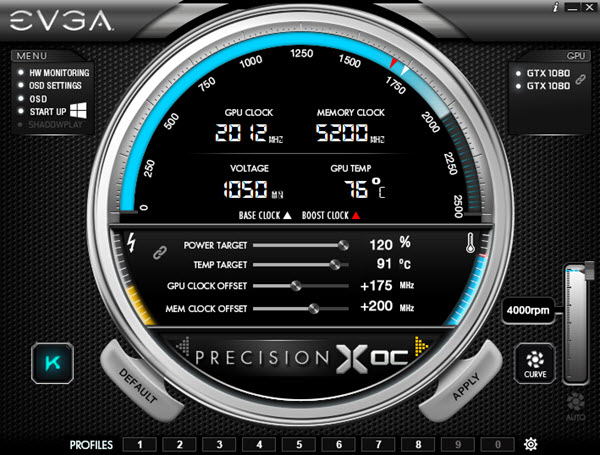
EVGA Precision X1 is a powerful overclocking utility specifically designed for NVIDIA GeForce graphics cards, offering a refined experience for users invested in the NVIDIA ecosystem. While it shares many core functionalities with MSI Afterburner, Precision X1 distinguishes itself with its sleek, modern interface and deep integration with EVGA’s hardware and software.
The software provides robust controls for adjusting GPU core clock, memory clock, and fan speed. Similar to Afterburner, it allows for voltage adjustments, which should be approached with utmost caution. Precision X1’s standout feature for NVIDIA users is its "OC Scanner" tool, which performs an automated overclocking routine, similar to Afterburner’s integration with Unigine. This scanner meticulously tests different clock and voltage settings to identify the maximum stable overclock for the user’s specific GPU model.
Real-time monitoring is a cornerstone of Precision X1, displaying critical metrics such as GPU temperature, clock speeds, memory usage, power draw, and fan RPMs. This comprehensive data allows users to closely monitor their GPU’s behavior during overclocking and gaming sessions. The software also supports custom fan curves, enabling users to create personalized fan profiles that optimize cooling performance while minimizing noise. EVGA Precision X1’s design emphasizes a visually appealing and user-friendly experience, making it accessible for those new to overclocking while still offering the depth required by experienced users. It supports multiple GPU profiles, allowing users to save and load different overclocking configurations for various tasks. For users who own EVGA branded graphics cards, Precision X1 offers the most seamless and integrated experience, often unlocking specific features or optimizations tailored to their hardware. The software’s tight integration with NVIDIA’s drivers and architecture ensures optimal compatibility and performance.
AMD Radeon Software: Integrated Control for AMD Users
For users who have embraced AMD’s Radeon graphics cards, the AMD Radeon Software (formerly Catalyst Control Center and Crimson Edition) offers a comprehensive, integrated solution for overclocking and performance tuning. This software is not a third-party application but rather the official driver suite provided by AMD, making it the most natively compatible option for Radeon GPUs.
Radeon Software provides a dedicated "Performance" tab that houses a suite of tools for GPU overclocking. Users can directly adjust the GPU’s core clock speed and memory clock speed. Crucially, it offers separate "Tuning Controls" for performance profiles, allowing for distinct settings for gaming, content creation, or general use. The software also provides advanced control over voltage settings, which, as with any overclocking software, requires a high degree of caution and expertise.
A significant advantage of Radeon Software is its "Radeon WattMan," a powerful tool within the Performance tab that allows for detailed per-game or application tuning. This means users can set specific overclocking profiles for individual titles, optimizing performance on a game-by-game basis. WattMan also provides fine-grained control over fan curves, enabling users to customize fan behavior based on GPU temperature to achieve their desired balance of cooling and acoustics.
The integrated monitoring suite within Radeon Software is also robust, displaying real-time data on GPU temperature, clock speeds, power consumption, memory usage, and frame rates. This allows users to track their GPU’s performance and stability during overclocking and demanding workloads. While it might not offer the same level of third-party plugin support or community-driven customization as MSI Afterburner, AMD Radeon Software provides a streamlined, highly compatible, and powerful overclocking experience for AMD users, making it the definitive choice for those within the AMD ecosystem. Its continuous development by AMD ensures it remains up-to-date with the latest hardware and software optimizations.
Gigabyte AORUS Engine: Feature-Rich for Gigabyte Enthusiasts
Gigabyte’s AORUS Engine is a dedicated overclocking utility primarily designed for Gigabyte and AORUS branded graphics cards, though it often works with other NVIDIA and AMD cards. It provides a robust set of features for users looking to fine-tune their GPU’s performance.
The AORUS Engine allows for direct manipulation of GPU core clock, memory clock, and voltage. Similar to other top-tier software, it offers a "Fan Speed" control that supports both automatic and manual adjustment of fan curves, allowing users to prioritize cooling or silence. A notable feature is its "OC Gauge," which provides real-time monitoring of various GPU parameters, including temperature, clock speeds, power consumption, and fan RPMs. This is essential for understanding how the overclock is impacting the GPU’s behavior.
The software includes an "OC Scanner" function that automates the process of finding stable overclocking settings, making it more accessible for users who are new to overclocking. This scanner tests different clock and voltage configurations to identify the optimal stable settings for the user’s specific GPU. Gigabyte AORUS Engine also supports profile management, allowing users to save and load their custom overclocking settings for easy switching between different performance profiles. For users who own Gigabyte or AORUS graphics cards, the AORUS Engine offers a highly integrated and optimized experience, potentially unlocking specific hardware features or performance enhancements tailored to their cards. The interface is generally clean and intuitive, aiming to provide a user-friendly experience for both novice and experienced overclockers. While it may not have the same broad community support as MSI Afterburner, it remains a strong contender for Gigabyte hardware owners seeking precise control and optimization.
Other Notable Mentions and Considerations:
Beyond the dominant players, several other software solutions offer valuable overclocking functionalities, often catering to specific niches or providing unique features. Zotac FireStorm is a good example, offering a user-friendly interface for Zotac GPU owners to adjust clock speeds, fan curves, and monitor temperatures. While primarily focused on Zotac hardware, it can sometimes offer compatibility with other brands.
For users prioritizing simplicity and essential monitoring, ASUS GPU Tweak III provides a streamlined experience for ASUS graphics cards. It offers core clock and memory clock adjustments, fan control, and real-time monitoring of key metrics. While it might not possess the same depth of advanced features as MSI Afterburner, it’s an excellent option for ASUS users seeking straightforward overclocking capabilities.
Important Considerations for Overclocking:
Regardless of the software chosen, several universal principles and considerations are paramount for safe and effective GPU overclocking.
- Cooling: Overclocking generates more heat. Adequate cooling is non-negotiable. Ensure your case has good airflow and consider upgrading your GPU cooler if necessary. High GPU temperatures are the primary limiter of stable overclocks and can lead to thermal throttling or permanent damage.
- Stability Testing: Never assume an overclock is stable immediately after applying it. Utilize built-in benchmarking tools within the software or employ independent stress-testing applications like Unigine Heaven, Superposition, 3DMark, or FurMark. Run these tests for extended periods (hours, not minutes) to identify any instabilities that may not manifest during short bursts of activity. Look for graphical artifacts, application crashes, or system freezes.
- Gradual Increments: Always increase clock speeds and voltages incrementally. Make small adjustments (e.g., 10-25 MHz for core clock, 50-100 MHz for memory clock) and then test for stability. This methodical approach helps pinpoint the maximum stable settings without overshooting and risking instability or damage.
- Voltage Control: Adjusting voltage is the most potent but also the riskiest aspect of overclocking. Higher voltages can significantly increase performance but also dramatically raise temperatures and the risk of damaging your GPU. Unless you have a thorough understanding of your GPU’s voltage tolerances and are prepared for the potential consequences, it is often best to avoid significant voltage increases or stick to the software’s automated overclocking features. Consult reputable hardware forums and guides specific to your GPU model before making any voltage adjustments.
- Power Limits: Overclocking increases power consumption. Ensure your power supply unit (PSU) has sufficient wattage and is of good quality to handle the increased load. Monitor power draw using your chosen software to ensure you are not exceeding your PSU’s capabilities.
- VRAM Overclocking: Memory overclocking can significantly impact performance, especially in games that are VRAM-intensive. However, it can also be more prone to instability and errors than core clock overclocking. Test memory overclocks thoroughly, looking for visual artifacts or performance degradation.
- Software Updates: Keep your GPU drivers and overclocking software updated to the latest versions. Updates often include performance optimizations, bug fixes, and improved compatibility with newer hardware.
- Hardware Lottery: Every GPU is a unique silicon sample. The “silicon lottery” means that two identical GPU models may overclock to different speeds due to manufacturing variations. What works for one user may not work for another. Be patient and experiment to find the optimal settings for your specific card.
- Warranty: Be aware that overclocking can potentially void your graphics card’s warranty. Proceed with caution and understand the risks involved.
Conclusion:
The selection of GPU overclocking software ultimately depends on your specific graphics card manufacturer and your level of overclocking experience. MSI Afterburner remains the most versatile and widely recommended option due to its comprehensive feature set and broad compatibility. For NVIDIA users, EVGA Precision X1 offers a polished and powerful alternative. AMD users will find the integrated AMD Radeon Software to be the most seamless and capable solution. Gigabyte AORUS Engine and ASUS GPU Tweak III provide excellent, hardware-specific options for their respective brands. By understanding the capabilities of each software and adhering to safe overclocking practices, users can effectively unlock the full performance potential of their graphics cards, enhancing their gaming, creative, and professional workflows.