The Ultimate Guide to Whale Watching in California: Seasonal Patterns, Conservation Efforts, and Premier Coastal Destinations

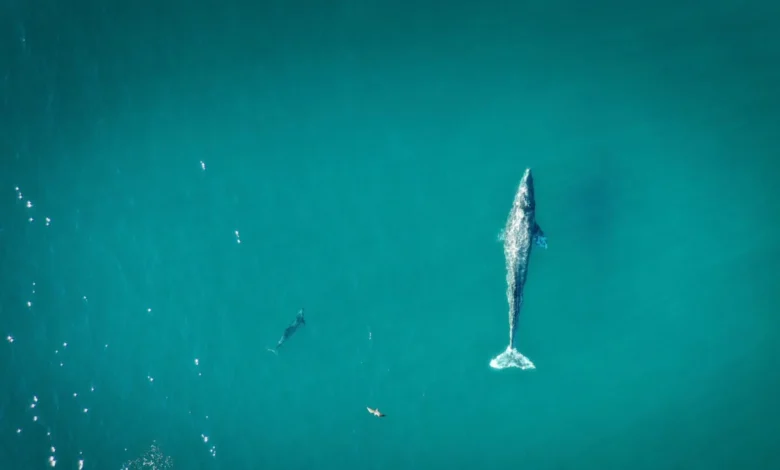
California’s expansive and ecologically diverse coastline represents one of the premier global destinations for cetacean observation, offering a window into the lives of the planet’s largest mammals. With nearly 840 miles of Pacific frontage, the Golden State serves as a critical corridor for various species, ranging from the massive blue whale to the highly migratory gray whale. However, the success of a whale-watching expedition is rarely a matter of chance; it is dictated by a complex interplay of seasonal migration patterns, underwater topography, and environmental stewardship. As marine tourism continues to grow, industry experts and marine biologists emphasize that the experience is as much about understanding the rhythm of the ocean as it is about the moment of a breach.
The Biological Clock: Understanding Seasonal Migrations
The fundamental driver of California’s whale-watching industry is the predictable, yet awe-inspiring, migration patterns of various species. According to Josh Geller, a Top Travel Specialist at Embark Beyond, successful wildlife encounters are inextricably linked to animal seasonality. The most prominent of these events is the annual journey of the gray whale. This species undertakes what is recognized as the longest migration of any mammal on Earth, traveling approximately 10,000 to 12,000 miles round-trip between their feeding grounds in the Arctic and their calving lagoons in Baja California, Mexico.
During the winter months, gray whales move southward along the California coast. This period also offers opportunities to spot fin, humpback, and minke whales. As spring arrives, the gray whales begin their northward return, often accompanied by calves. This season sees a rise in fin whale sightings and an increase in orca (killer whale) activity in Northern California waters, where they often hunt migrating calves.
By the summer, the focus shifts to the Southern California coast, where the blue whale—the largest animal known to have ever existed—dominates the deep waters. Reaching lengths of up to 100 feet, these giants are drawn to the region by dense concentrations of krill. In the autumn, the migratory cycle continues as attention shifts back to humpback whales in the south and orcas in the nutrient-rich waters of Monterey Bay.
The Ethics of Observation: Mindfulness and Marine Stewardship
As whale watching has evolved into a significant economic driver for coastal communities, the importance of "responsible tourism" has moved to the forefront of the conversation. Experts argue that the primary role of the tourist is that of a respectful guest. Arielle Lightcap, a Top Travel Specialist with AdventureSmith Explorations, notes that the activity is defined by its name: whale watching. This distinction is critical in managing tourist expectations and ensuring animal welfare.

Federal regulations, such as the Marine Mammal Protection Act, set strict guidelines for how closely vessels can approach whales. Maintaining a respectful distance is not merely a legal requirement but a biological necessity to prevent the disruption of feeding, mating, and nursing behaviors. Geller advises travelers to listen closely to guides and marine biologists, who provide the "rules of engagement" necessary to preserve the animals’ natural habitat.
Practical preparation also plays a role in environmental protection. Travelers are encouraged to wear secure gear; for instance, hats should be fastened with chin straps to prevent them from blowing into the ocean and becoming marine debris. Furthermore, Lightcap suggests that visitors should limit their use of technology. While capturing a photograph is a common goal, the "tinkering" with lenses and settings often results in missing the actual event. More importantly, she emphasizes that the most profound connection with nature occurs when the viewer is fully present, rather than observing through a screen.
Monterey Bay: The Abyss of Biodiversity
Monterey Bay stands as a crown jewel of the California coast, offering year-round whale-watching opportunities facilitated by a unique geological feature: the Monterey Submarine Canyon. Stretching over two miles deep, this underwater chasm rivals the Grand Canyon in scale and serves as a biological engine for the region. The canyon facilitates "upwelling," a process where cold, nutrient-rich water rises from the depths to the surface, supporting a massive food web that attracts a diverse array of marine life.
In Monterey, the peak of the gray whale migration occurs in January and March. Humpback whales are a near-constant presence from March through November, known for their acrobatic breaching and "lunge feeding" behaviors. Blue whales typically appear in late summer, while orcas are most frequently sighted during two distinct windows: mid-April to mid-May and August through October.
The region is also home to the world-renowned Monterey Bay Aquarium and hosts the annual Whalefest, an event dedicated to marine education and conservation. For those embarking on boat tours, experts recommend morning departures. In Northern California, afternoon winds can lead to choppy seas, increasing the risk of motion sickness. Utilizing tours led by marine biologists, such as Monterey Bay Whale Watch, ensures that the excursion is grounded in scientific accuracy and environmental ethics.
The Gulf of the Farallones: A Sanctuary of Giants
Spanning 3,295 square miles off the coast of San Francisco, the Greater Farallones National Marine Sanctuary is one of the most significant marine ecosystems in the United States. This protected area provides essential breeding and feeding grounds for at least 25 endangered or threatened species. The diversity here is staggering, encompassing 36 species of marine mammals, including blue, gray, and humpback whales, as well as harbor seals, elephant seals, and Pacific white-sided dolphins.

The optimal window for viewing the highest concentration of species in the Gulf is from late December to May. However, there is a notable "gap" in the season from mid-November to mid-December. During this time, the migration patterns of various species are in transition—some have finished their seasonal residency while others have not yet arrived—resulting in fewer sightings near the San Francisco coastline.
For those who prefer to remain on terra firma, the Point Reyes Peninsula and the Point Bonita Lighthouse offer exceptional land-based vantage points. These locations allow observers to witness the "blows" and tails of migrating whales without the need for a boat. For those who do take to the water, organizations like the Oceanic Society have been providing educational tours since the 1970s, emphasizing the long-term conservation of the Farallon Islands.
Dana Point: The Dolphin and Whale Capital of the World
In Southern California, Dana Point has distinguished itself as a global leader in marine tourism. In 2021, it was designated as the first "Whale Heritage Area" in the Americas by the World Cetacean Alliance. This title is reserved for locations that demonstrate an exceptional commitment to the protection of cetaceans through sustainable practices and community education.
Dana Point is unique for its high concentration of dolphins—boasting more dolphins per square mile than anywhere else on the planet. The local waters are home to "mega-pods" that can number in the thousands. Regarding whales, the migratory calendar remains the primary guide: gray whales are prominent from November to May, while blue and humpback whales dominate the summer and fall. The area also sees occasional visits from rarer species, such as pilot whales, sperm whales, and false killer whales.
The Southern California climate provides a distinct advantage for whale watchers, as the weather is more consistently sunny and the seas are generally calmer than those in the north. This makes Dana Point an ideal entry point for families and first-time observers who may be concerned about the physical demands of a sea voyage.
Economic and Environmental Implications
The whale-watching industry in California is more than a recreational pastime; it is a vital component of the state’s "Blue Economy." According to various economic impact studies, marine tourism generates hundreds of millions of dollars in annual revenue, supporting thousands of jobs in hospitality, transportation, and research. This economic incentive has, in turn, fueled a greater public interest in marine conservation.

However, the industry faces challenges. Climate change is beginning to alter ocean temperatures and the distribution of prey species like krill and forage fish. These shifts can lead to changes in migration timing and routes, sometimes forcing whales closer to shipping lanes where the risk of vessel strikes increases.
The data collected by whale-watching vessels often serves a dual purpose. Many tour operators collaborate with research institutions, providing sightings data and photographic identification that help scientists track population health and migration trends. This synergy between tourism and science is essential for the long-term survival of these species.
Conclusion: The Future of the Deep
Whale watching in California represents a unique intersection of adventure, education, and environmentalism. By adhering to seasonal patterns and choosing reputable, conservation-minded operators, travelers can witness some of the most spectacular events in the natural world while contributing to the protection of the marine environment. Whether observing the massive blue whales of the south or the acrobatic humpbacks of the north, the experience serves as a powerful reminder of the ocean’s vastness and the fragile giants that call it home. As the state continues to lead in marine sanctuary management and sustainable tourism, the future of California’s whale watching remains a beacon of hope for wildlife enthusiasts worldwide.