Add Fonts To Photoshop

Effortlessly Add Fonts to Photoshop: A Comprehensive Guide for Designers
Integrating new fonts into Adobe Photoshop is a fundamental skill for any graphic designer, illustrator, or digital artist. The ability to expand your typographic arsenal allows for greater creative expression, brand consistency, and the ability to precisely match design briefs. This guide provides a detailed, SEO-optimized walkthrough covering all essential methods for adding fonts to Photoshop, from straightforward installations to more advanced management techniques. We’ll explore different operating systems, font formats, and best practices to ensure a seamless workflow.
Understanding Font Files and Installation Methods
Before delving into the installation process, it’s crucial to understand the common font file types you’ll encounter. The most prevalent are TrueType Font (.ttf) and OpenType Font (.otf). Both are highly versatile and widely supported. OpenType fonts, in particular, offer advanced features like ligatures, stylistic alternates, and expanded character sets. Occasionally, you might also come across PostScript Type 1 fonts (.pfb, .pfm), though these are less common in modern digital design. Regardless of the format, the installation process on Windows and macOS is generally straightforward.
Installing Fonts on Windows
Windows offers several intuitive ways to add fonts to Photoshop and the entire operating system. The most direct method involves locating your downloaded font files and installing them through the Windows Font viewer.
-
Manual Installation via Font Folder:
- Locate the downloaded font files (e.g., a .zip folder).
- Extract the font files if they are compressed.
- Open the Windows File Explorer and navigate to the "C:WindowsFonts" folder. This is the system’s primary font directory.
- Drag and drop the extracted .ttf or .otf font files directly into this folder.
- Alternatively, you can right-click on the font file and select "Install" or "Install for all users." "Install for all users" is recommended for making the font available to all user accounts on the computer.
-
Installation via Font Settings (Windows 10 & 11):
- Press the Windows key and type "Fonts." Select "Font settings" from the search results.
- In the Font settings window, you’ll see a drag-and-drop area labeled "Drag and drop to install."
- Simply drag your extracted font files from their location into this designated area. The fonts will be installed automatically.
- You can also click on "Add fonts" to browse your computer for the font files you wish to install.
Once installed through either of these methods, Photoshop will automatically detect the new fonts upon its next launch. If Photoshop is already running during the installation, you’ll need to close and reopen it for the new fonts to appear in the font list.
Installing Fonts on macOS
macOS provides a streamlined font management system through the Font Book application.
-
Using Font Book (Recommended):
- Locate your downloaded font files.
- Extract them if they are in a .zip archive.
- Double-click on the .ttf or .otf font file. This will typically open the Font Book application, displaying a preview of the font.
- Click the "Install Font" button in the Font Book preview window.
- Alternatively, you can open Font Book directly from your Applications folder.
- Within Font Book, go to File > Add Fonts to Current User (or File > Add Fonts to This Mac if you want it available for all users).
- Browse to the location of your font files and select them. Click "Open."
-
Manual Installation via Fonts Folder:
- Navigate to your user’s Fonts folder:
~/Library/Fonts/(for current user only) or/Library/Fonts/(for all users). - To access the user’s Library folder (which is hidden by default), click on the "Go" menu in Finder, hold down the Option key, and select "Library."
- Drag and drop your extracted font files directly into the appropriate Fonts folder.
- Navigate to your user’s Fonts folder:
Similar to Windows, any fonts installed via Font Book or the Fonts folder will be available in Photoshop after you restart the application.
Adding Fonts Directly Within Photoshop (Adobe Fonts)
Adobe Creative Cloud offers a powerful integrated font library known as Adobe Fonts (formerly Typekit). This service provides access to thousands of high-quality fonts that can be activated and used directly within Photoshop and other Adobe applications without manual installation.
-
Accessing Adobe Fonts:
- Open Photoshop.
- Go to the Type Tool (T).
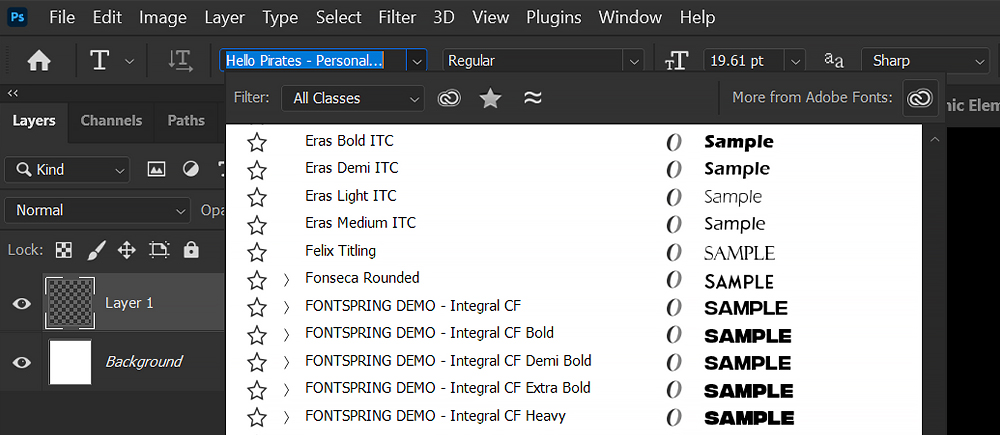
- In the Options bar at the top, click the Font Family dropdown.
- At the very top of the font list, you’ll see "More Fonts…" or a similar option that links to Adobe Fonts. Click this.
- This will launch your web browser to the Adobe Fonts website (fonts.adobe.com).
-
Activating Fonts:
- Browse or search for fonts on the Adobe Fonts website.
- Once you find a font you like, click the "Activate" button next to its name. You can activate individual font families or specific weights within a family.
- The font will now be available within Photoshop and all other activated Adobe applications. The activation is synchronized across your devices if you are logged into your Adobe Creative Cloud account.
Important Considerations for Adobe Fonts:
- Subscription Required: Access to Adobe Fonts requires an active Adobe Creative Cloud subscription.
- Offline Use: Activated Adobe Fonts are available for offline use for a limited period (typically 30 days). For continuous offline access, ensure your Creative Cloud desktop app is running and synchronized periodically.
- Font Management: You can manage your activated fonts through the Adobe Fonts website or the Creative Cloud desktop application.
Managing Fonts within Photoshop
Beyond simply installing them, effective font management is key to a productive Photoshop workflow.
-
Finding Installed Fonts:
- Select the Type Tool (T).
- Click on your canvas to create or select a text layer.
- In the Options bar or the Character panel (Window > Character), you’ll see the Font Family dropdown.
- Your newly installed fonts will appear in this list, usually alphabetically.
-
Using the Character Panel:
- The Character panel (Window > Character) is your central hub for font manipulation.
- It allows you to select fonts, adjust size, leading (line spacing), kerning (space between specific letter pairs), tracking (overall letter spacing), and other typographic properties.
- The panel also displays the currently active font, making it easy to switch between installed fonts.
-
Font Folders and Favorites (macOS Font Book):
- On macOS, Font Book allows you to organize fonts into collections or "folders" for easier access. You can create custom collections for different projects or font styles.
- You can also mark fonts as "Favorites" for quick retrieval.
-
Third-Party Font Management Software:
- For designers working with a vast number of fonts, dedicated font management software like Suitcase Fusion, FontBase, or RightFont can be invaluable.
- These tools offer advanced features such as font previewing, organization, conflict resolution, and the ability to activate/deactivate fonts on demand without permanently installing them into the system. This can significantly improve system performance, especially on older or less powerful machines.
- Most of these applications integrate with Photoshop, allowing you to browse and activate fonts directly from within your design software.
Troubleshooting Font Installation Issues
Occasionally, you might encounter problems when adding fonts to Photoshop. Here are common issues and their solutions:
-
Font Not Appearing in Photoshop:
- Photoshop not restarted: The most common cause. Always close and reopen Photoshop after installing new fonts.
- Font file corrupted: Download the font again from a reputable source.
- Font already installed or conflicting: Sometimes, an older version of a font might be present. Uninstall any existing versions and reinstall the new one. On macOS, Font Book can help identify duplicate fonts.
- Incorrect installation method: Ensure you’ve followed the correct steps for your operating system.
- Font format unsupported: While rare, ensure your font is in a supported format (.ttf, .otf, .woff, etc.).
-
Font Appears but Displays Incorrectly:
- Corrupted font file: Re-download the font.
- Font conflicts: Multiple versions of the same font or similar fonts can sometimes cause rendering issues. Use font management software to identify and resolve conflicts.
- System font cache issue: On both Windows and macOS, clearing the font cache can resolve rendering problems. This is a more advanced troubleshooting step and requires specific instructions for each OS.
-
Font Installation Errors:
- Permissions issues: Ensure you have administrator privileges on your computer to install fonts for all users.
- Insufficient disk space: While unlikely for font files themselves, ensure your system drive has adequate free space.
- Antivirus interference: Temporarily disable your antivirus software (with caution) and try installing the font again.
Best Practices for Font Usage and Management
- Source Fonts Responsibly: Always download fonts from reputable foundries or marketplaces to avoid malware and ensure proper licensing.
- Understand Licensing: Be aware of the licensing terms for each font. Some fonts are free for personal use but require a commercial license for professional projects.
- Organize Your Font Library: Use folders, collections, or font management software to keep your fonts organized. Categorize by project, style, or foundry.
- Avoid Font Bloat: Installing thousands of fonts can slow down your system and Photoshop. Only install fonts you actively use or project-specific fonts when needed. Consider using font management software to activate/deactivate fonts on demand.
- Test Fonts Thoroughly: Before committing to a font for a major project, test it at different sizes and in various contexts to ensure readability and aesthetic appeal.
- Maintain Font Consistency: For branding projects, ensure you are using the correct versions and weights of approved fonts across all collateral.
By mastering the techniques outlined in this guide, you can significantly enhance your creative capabilities within Photoshop. Whether you’re leveraging the vast Adobe Fonts library or carefully curating your own collection of custom fonts, the ability to seamlessly integrate and manage typographic assets is crucial for producing polished, professional designs. Remember to restart Photoshop after each installation and utilize the Character panel and, if necessary, dedicated font management software for optimal results.