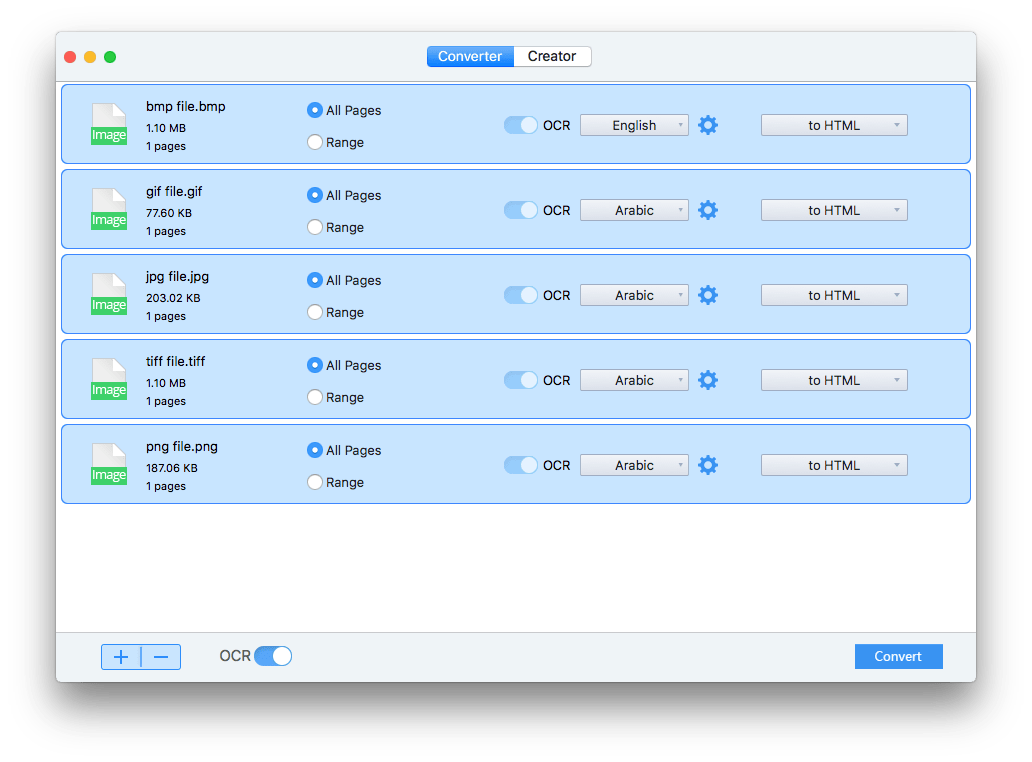
Image to HTML converters are essential tools for web developers, streamlining the process of integrating visuals into websites. These tools handle various image formats (JPG, PNG, GIF, SVG) and convert them into HTML-compatible code, making it easier to embed images on web pages. From simple logos to complex illustrations, image to HTML converters ensure your website visuals are optimized for performance and accessibility.
Understanding the nuances of conversion methods, the features of popular converters, and the importance of responsive design are key to leveraging these tools effectively. This comprehensive guide delves into the intricacies of image to HTML conversion, offering practical applications, optimization strategies, and troubleshooting tips for seamless integration into your web development workflow.
Introduction to Image to HTML Converters
Image to HTML converters are tools designed to transform image files into semantically rich HTML code. This process allows for the integration of images into web pages in a way that is both visually appealing and accessible to users, especially those with disabilities. These converters go beyond simply embedding an image; they often create elements that aid in understanding and contextualizing the image within the webpage’s structure.These tools are invaluable for web developers and designers.
They enable efficient and structured integration of images into websites, streamlining the workflow and ensuring optimal presentation. The process often involves analyzing the image’s content and generating appropriate HTML tags to correctly display and describe the image, making it easily navigable for all users.
Definition and Purpose
Image to HTML converters are software applications that translate image data into HTML code, allowing images to be displayed on web pages. Their primary purpose is to embed images within the structure of a webpage, ensuring proper rendering and accessibility. This involves more than just placing the image; it also creates HTML elements for alternative text descriptions, image captions, and other metadata, which are crucial for accessibility.
Input and Output Formats
The input to these converters typically includes various image formats, such as JPG, PNG, GIF, and SVG. The output is structured HTML code, complete with the necessary tags for displaying the image and associating metadata like alt text. This output is easily integrable into existing web pages.
Supported Image Formats
These converters typically support a wide range of image formats. Commonly supported formats include:
- JPG (JPEG): A widely used format for photographs and images requiring high compression.
- PNG: A lossless format that is commonly used for graphics and images requiring transparency or high quality, like logos and icons.
- GIF: An animated image format often used for simple animations and graphics.
- SVG (Scalable Vector Graphics): A vector-based image format that maintains its quality at various sizes, ideal for illustrations and logos, suitable for web pages.
Use Cases
Image to HTML converters are valuable in diverse scenarios:
- Web Design: They streamline the process of incorporating images into web pages, allowing designers to focus on layout and aesthetics.
- Content Management Systems (CMS): These converters enable efficient image integration into CMS platforms, ensuring a smooth workflow for website administrators.
- Image Library Management: They provide a structured way to embed and manage images, making it easier to update and maintain web content.
Scenarios of Benefit
Several scenarios illustrate the value of these converters:
- Converting scanned documents to web pages: These converters can convert scanned documents with images into structured web pages, allowing users to easily navigate the content.
- Integrating images into articles or blogs: This process improves the readability and visual appeal of web content.
- Creating accessible websites: These converters are vital for generating alt text, ensuring images are understandable to users with visual impairments.
Accessibility in Image to HTML Conversion
A critical aspect of image to HTML conversion is accessibility. Alt text, an essential element, describes the image’s content for users who cannot see it. This is crucial for screen readers and other assistive technologies. By incorporating appropriate alt text, image to HTML converters ensure that images are meaningful to all users.
Conversion Methods and Techniques
Image-to-HTML conversion bridges the gap between visual imagery and web-based presentation. Understanding the diverse methods behind this transformation is crucial for effectively integrating images into websites and web applications. Different approaches offer varying levels of control, optimization, and compatibility, making informed selection essential for achieving desired outcomes.The process of converting an image to HTML fundamentally involves embedding the image data within the HTML structure.
This embedding allows web browsers to correctly display the image within the page layout. This conversion, however, often necessitates pre-processing and post-processing steps to ensure optimal performance and user experience.
Image Embedding Techniques
Various methods are available for embedding images within HTML documents. The choice of method hinges on factors such as the desired level of control, the image’s complexity, and the target audience. Different techniques lead to varied rendering speeds, quality, and compatibility with different web browsers.
- Direct Embedding: This approach involves directly inserting the image data (e.g., in base64 encoding) into the HTML source code. This method offers maximum control but can lead to larger file sizes if the image is complex. Direct embedding is particularly useful when dealing with simple images, or when the image needs to be dynamically generated based on user input.
Example: Using the `
` tag with a data URI directly within the HTML code.
- Image Hosting Services: Many online platforms offer image hosting and retrieval services. These platforms provide URLs for images, enabling their seamless integration into HTML. Using an image hosting service simplifies the conversion process and reduces the overhead of managing image storage. Example: Uploading an image to Imgur and using its provided URL in the HTML.
- Image Optimization Libraries: These libraries are designed to compress and optimize images for web use. This optimization improves loading speed, reducing bandwidth usage and enhancing user experience. Example: Libraries like TinyPNG or ImageOptim that can be used to compress images before embedding them in HTML.
Conversion Process Breakdown, Image to html converters
The conversion process usually involves several stages, each with its own significance in achieving optimal outcomes. These stages range from preparing the image to the actual embedding within the HTML.
Image to HTML converters are super helpful for getting images ready for websites. But, even with these tools, creating compelling online content, like a children’s book publisher, berkeley childrens book publisher continues surviving in tough market , faces challenges in today’s competitive market. Luckily, the right tools, like image to HTML converters, can help authors present their work effectively.
- Image Preprocessing: This step focuses on optimizing the image for web use. Techniques such as resizing, cropping, and format conversion are employed. This step ensures the image is compatible with the target platform and reduces the size of the image to avoid performance issues.
- Data Representation: The image data is converted into a format suitable for HTML. Often this involves encoding the image into a format that the browser can understand, such as base64 encoding.
- HTML Integration: The image data is embedded within the HTML document using appropriate tags (e.g., `
`). This step integrates the image into the desired layout.
Comparison of Conversion Approaches
Different methods of image conversion have varying pros and cons, which need to be considered when choosing the right method for a given task.
Image to HTML converters are super handy for quickly getting images into web pages. But, the complexities of global tech networks, like those involved in the case of the Singapore man accused of chip fraud, this Singapore man accused of chip fraud wields silicon valley and global connections , highlight just how much intricate technology underlies seemingly simple tasks.
So, next time you use an image to HTML converter, appreciate the vast web of connections it relies on, even if you don’t see them.
| Method | Advantages | Disadvantages |
|---|---|---|
| Direct Embedding | Maximum control, potential for dynamic updates | Larger file sizes, potential for performance issues with complex images |
| Image Hosting Services | Simplified integration, reduced storage overhead | Dependence on third-party services, potential for service disruptions |
| Image Optimization Libraries | Reduced file sizes, improved loading speed | Additional software or tools required, requires image manipulation expertise |
Image Optimization
Image optimization is critical for conversion. Optimized images significantly impact the loading speed of web pages, leading to a better user experience. By reducing file size and improving rendering speed, optimization ensures that users can access web content effectively.
Choosing the Right Method
The best conversion method depends on specific needs and priorities. Consider factors like file size, desired level of control, and the image’s complexity. For simple images requiring immediate integration, direct embedding might be suitable. For large-scale projects or images with intricate designs, leveraging image hosting services or optimization libraries might be more appropriate.
Step-by-Step Conversion Procedure
- Select the image to be converted.
- Choose the appropriate conversion method (e.g., direct embedding, image hosting service).
- Prepare the image for conversion (resize, optimize, etc., if needed).
- Integrate the image into the HTML document using the chosen method.
- Test the converted image to ensure proper display and performance.
Features and Capabilities
Image to HTML converters have become invaluable tools for seamlessly integrating images into web pages. Their core functionality extends beyond simple embedding, encompassing various features that enhance the user experience and optimize website performance. This section delves into the key features, comparing different converters, and highlighting the importance of responsive design and image handling.Different converters offer varying degrees of functionality, impacting the overall user experience.
Some focus on basic embedding, while others include advanced features like automatic resizing, optimization, and generation of alt text. Understanding these distinctions allows users to choose the converter that best meets their specific needs.
Core Features of Popular Converters
A variety of features are offered by image to HTML converters. These range from basic functionalities to more sophisticated tools for enhanced web page design. Key features typically include the ability to upload images, automatically generating HTML code, handling different image formats, and enabling resizing and optimization.
- Image Format Support: Most converters support common image formats like JPEG, PNG, and GIF. However, some converters offer wider support, encompassing less common formats like WebP, which often offer better compression and quality.
- Resizing and Optimization: Effective converters allow users to resize images to fit specific webpage dimensions while maintaining quality. Advanced converters often offer optimization options, reducing file sizes without significant loss of visual quality. This optimization can improve page loading times, which are critical for user experience.
- Responsive Design: A critical feature is the ability to generate HTML code that adapts to different screen sizes and devices. This responsiveness ensures that the image displays correctly on desktops, tablets, and mobile phones.
- Alt Text Generation: This feature automatically generates alt text for images. Alt text is essential for accessibility and search engine optimization (). Good alt text accurately describes the image for users with visual impairments and helps search engines understand the content of the image.
- Batch Conversion: Some converters enable the conversion of multiple images simultaneously, streamlining the process for webmasters with many images to incorporate.
Comparison of Converter Features
Different converters vary in their offered features. A critical aspect is how they handle image sizes and resolutions, impacting the visual quality and responsiveness of the webpage.
| Converter | Image Format Support | Resizing & Optimization | Responsive Design | Alt Text | Batch Conversion |
|---|---|---|---|---|---|
| Converter A | JPEG, PNG, GIF | Basic resizing, no optimization | Limited responsiveness | Automatic, basic | Yes |
| Converter B | JPEG, PNG, GIF, WebP | Advanced resizing, optimization | Full responsiveness | Automatic, detailed | Yes |
| Converter C | JPEG, PNG, GIF, WebP, SVG | Advanced resizing, lossless optimization | Full responsiveness, custom CSS | Automatic, customizable | Yes, with priority queue |
Responsive Design in Image Conversion
Responsive design is crucial for modern web pages, ensuring consistent viewing across different devices. Image to HTML converters must generate HTML that adapts to various screen sizes and resolutions.Responsive design allows images to automatically adjust their size and layout based on the user’s device. This eliminates the need for separate images for different screen sizes, improving efficiency and maintaining visual consistency.
The HTML generated by the converter should include appropriate CSS or other techniques to ensure the image’s correct scaling.
Image Handling and Embedding
Converters handle different image sizes and resolutions through various methods. They can resize images proportionally, crop, or maintain aspect ratios, ensuring the image seamlessly integrates into the web page.Embedding images within HTML involves including the appropriate image tags within the HTML structure. The ` ` tag, along with attributes like `src` (source), `alt` (alternative text), and `width`/`height` (dimensions), are used to embed images into web pages.“`html
 “`This code snippet demonstrates a basic image embedding. The `src` attribute points to the image file, `alt` provides a textual description, and `width` and `height` specify the dimensions of the image within the page.
Practical Applications and Examples: Image To Html Converters
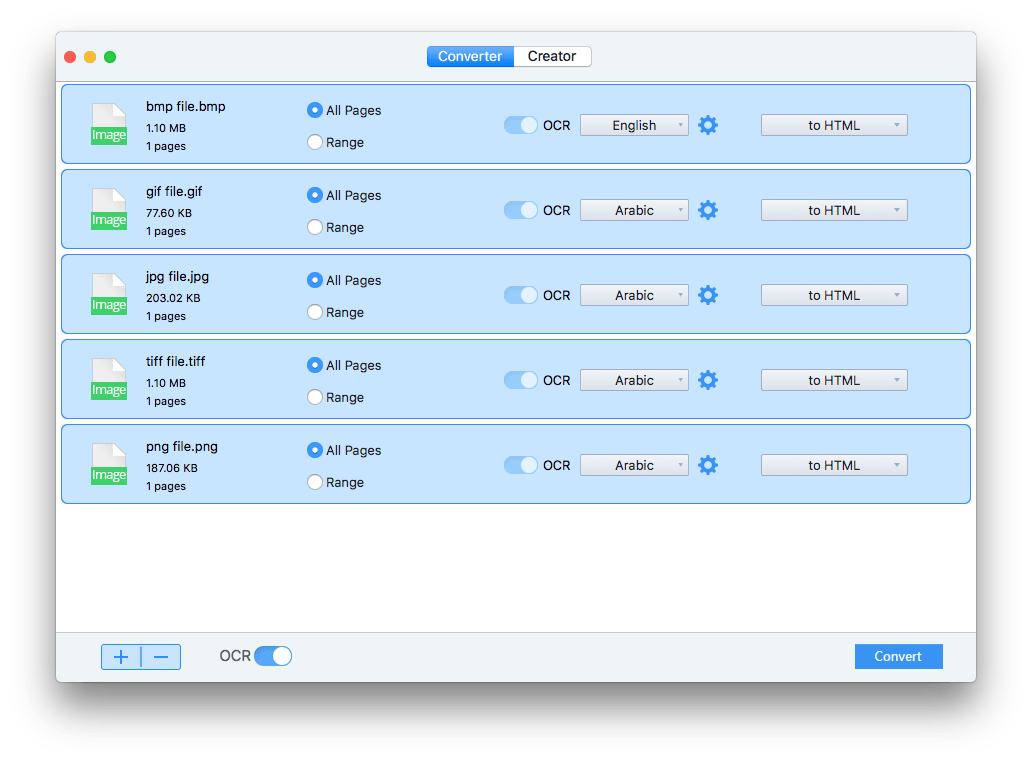
Image-to-HTML converters are invaluable tools for web developers, simplifying the process of integrating images into web pages while enhancing accessibility and design. They streamline the creation of visually appealing and functional websites by automating the tedious task of embedding images within HTML code. This allows developers to focus on the overall layout and functionality of the site, rather than getting bogged down in the intricacies of HTML coding.These converters offer a multitude of benefits for web development, from improving page aesthetics to ensuring better accessibility.
By automating the image embedding process, they significantly reduce development time and effort.
Image Integration Using HTML Tags
Image integration within HTML is crucial for visual appeal and conveying information effectively. Different HTML tags are employed for various purposes, each impacting the display and functionality of the image. Proper use of these tags is paramount for achieving desired results.
- The <img> tag is the fundamental element for embedding images. It’s used to display static images on a webpage. The source of the image is specified using the “src” attribute, and alternative text for screen readers or accessibility is provided using the “alt” attribute. This ensures that users with disabilities can still perceive the content.
- The <picture> tag offers greater flexibility by allowing you to display different image versions based on user devices or screen sizes. This tag is particularly useful for responsive design, automatically adjusting image display for various resolutions, avoiding unnecessary loading of larger images on smaller screens. It leverages source sets, offering multiple image sources, each with specific attributes (width, height, and type).
This approach enhances page loading speed and visual experience.
- The <object> tag, while less common, enables embedding various multimedia objects including images, providing a more comprehensive way to incorporate rich media. It allows embedding objects beyond simple images, potentially incorporating interactive content, though this is less frequent than using the <img> tag for static image displays.
Examples of Image Usage
Images play a critical role in enhancing web page design and user experience. Different image types serve diverse purposes within a website.
- Buttons: Well-designed buttons, often visually appealing and interactive, improve user navigation. They typically use a visually engaging image to represent the function, leading to enhanced user experience. For example, a button displaying a shopping cart icon clearly indicates the purchasing functionality, leading to a more intuitive user interaction. High-quality images that align with the overall site design enhance the visual appeal and user-friendliness of the website.
- Logos: Logos are crucial for brand recognition. They act as visual representations of a company or organization. High-quality logos, prominently displayed on the website, establish brand identity and help users easily recognize and associate the site with the corresponding brand. The logo’s design must align with the overall aesthetic of the website to ensure a cohesive brand image.
- Illustrations: Illustrations, used to enhance understanding of complex concepts or convey information in a visually engaging manner, can greatly improve the user experience. For instance, a flowchart depicting a process or a diagram explaining a mechanism enhances the user’s comprehension. Illustrations can make a website more visually appealing and can break up large blocks of text.
Importance of Alt Text for Accessibility
The “alt” attribute is critical for accessibility. It provides alternative text for images, which is crucial for users with visual impairments who rely on screen readers. Providing meaningful alt text helps convey the essence of the image to these users, improving their understanding and interaction with the website.
The alt text should concisely describe the image’s content, and not simply repeat the filename.
A descriptive alt text, such as “a person using a computer,” is preferable to a generic description like “image1.”
Benefits of Using Image-to-HTML Converters
These converters significantly reduce the development time and effort needed to integrate images into web pages. This allows developers to focus on the more complex aspects of web design and functionality, leading to more efficient development workflows. The time saved can translate into faster website development and launch.
- Reduced Development Time: Conversion tools automate the process, saving significant time in the coding phase. The time saved can be used for other critical aspects of website development, improving efficiency.
- Improved Code Readability: Well-structured HTML code, generated by the converter, improves code maintainability and reduces the risk of errors. This is crucial for large-scale web projects, where consistent code structure is paramount for future updates and maintenance.
- Enhanced Accessibility: By ensuring the inclusion of alt text, these converters promote better accessibility for users with disabilities. The resulting HTML structure often includes crucial attributes like alt text, improving the overall user experience for all visitors.
Optimization and Performance

Image-to-HTML conversion is more than just translating pixels into code; it’s about creating web pages that load quickly and look great. Optimizing images before conversion is crucial for delivering a seamless user experience. Performance directly correlates with the user’s perception of your website’s speed and reliability.
Optimizing Images Before Conversion
Efficient image optimization before conversion significantly improves the performance of the generated HTML. This involves techniques that reduce file size without sacrificing visual quality. Careful consideration of image format, resolution, and compression is key.
Impact of Image Size and Quality on Load Times
Larger image files translate to longer loading times for HTML pages. High-quality images, while visually appealing, often come with larger file sizes. The balance between visual quality and file size directly impacts the user’s experience. Smaller files lead to faster page loads, improving website performance and user satisfaction. For instance, a 10MB image will take longer to download than a 100KB image, leading to a noticeable difference in the page load time.
Image Compression Methods for Optimal Results
Various image compression methods are available, each with varying degrees of impact on file size and quality. Lossy compression methods, like JPEG, reduce file size by discarding some image data, which can result in slight quality degradation. Lossless compression methods, like PNG, preserve all image data, maintaining quality but potentially resulting in larger file sizes. Choosing the right compression method depends on the specific needs of the project.
For example, a photograph might benefit from JPEG’s smaller file sizes, while a graphic design with sharp edges might be better served by PNG’s quality preservation.
Impact of Image Resolution on Output HTML
Image resolution directly affects the size of the image displayed on the HTML page. Higher resolution images, while visually detailed, might not be necessary for all applications and lead to unnecessary file sizes. Images with unnecessarily high resolutions often result in larger file sizes, which slows down the page load time. A good rule of thumb is to use the lowest resolution that still maintains the desired visual quality.
For instance, a website with a background image will perform better with a resolution optimized for that particular use case, avoiding the unnecessary weight of high resolution.
Best Practices for Converting High-Resolution Images to HTML
Converting high-resolution images to HTML effectively requires understanding the target audience and intended use. Avoid converting images with resolutions exceeding the necessary requirements. Using appropriate image formats, such as WebP, can significantly reduce file sizes without noticeable quality loss. Scaling down images proportionally before conversion ensures that the displayed image fits the intended space on the page.
Impact of Different Image Formats on Conversion Speed
Different image formats have varying impacts on conversion speed. Formats like JPEG and PNG are commonly used and have established conversion processes. Newer formats like WebP offer both high compression and good quality, which can lead to faster conversion times and better page load performance. Conversion time is dependent on the complexity of the image, the chosen format, and the capabilities of the conversion tool.
Conversion times for WebP images tend to be slightly higher compared to JPEG, as they involve a different compression algorithm. Conversion tools with optimized support for different formats will result in better performance.
Handling Diverse Image Formats
Image to HTML converters need to accommodate a wide variety of image formats, each with its own characteristics and internal structures. This necessitates a robust understanding of these differences to ensure accurate and high-quality conversion. Different formats vary in compression methods, color depth, and file sizes, impacting conversion time and output quality.Image formats like JPEG, PNG, GIF, and WebP each have unique strengths and weaknesses.
Understanding these nuances is critical for efficient and high-quality conversion. This section details the strategies for handling these variations, addressing challenges and providing solutions to ensure optimal conversion results.
Conversion Strategies for Different Image Types
Different image formats have distinct compression algorithms, affecting file size and quality. JPEG, renowned for its compression capabilities, often sacrifices some detail for smaller file sizes. PNG, on the other hand, prioritizes image quality and often results in larger files. GIFs are best for simple animations and graphics. WebP, a modern format, balances quality and size effectively.
These inherent characteristics dictate how converters approach conversion.
Challenges and Solutions for Various Image Types
One key challenge is maintaining image quality when converting between formats. Lossy compression, like in JPEG, can lead to data loss, resulting in a noticeable decrease in image detail during conversion. Converters need to employ techniques to mitigate these losses. Strategies include employing advanced algorithms to estimate missing data, especially in lossy compression formats, and using appropriate resampling methods.
Using lossless compression methods for formats like PNG or TIFF can preserve the original image quality during conversion.
Compatibility Issues and Solutions
Compatibility issues can arise when converting between different image formats. For instance, a converter might not fully support a specific, less common format, leading to errors or unexpected outputs. Comprehensive testing and support for a wide range of formats are essential. This necessitates careful selection of libraries and algorithms for optimal compatibility across various image types. Comprehensive error handling mechanisms are crucial to gracefully manage unsupported formats or corrupted files.
Supported Image Formats Comparison
The table below provides a comparative overview of supported image formats for several popular image-to-HTML converters. This data is useful for choosing the right converter based on your needs.
| Converter | JPEG | PNG | GIF | WebP | TIFF | BMP |
|---|---|---|---|---|---|---|
| Converter A | Yes | Yes | Yes | Yes | No | No |
| Converter B | Yes | Yes | Yes | Yes | Yes | Yes |
| Converter C | Yes | Yes | No | No | Yes | Yes |
Converting Images with Different Color Depths
Images can have varying color depths, from 8-bit to 24-bit or even higher. Converting images with different color depths necessitates careful consideration. The converter needs to handle potential color quantization issues, where a limited palette might not accurately represent the original image’s colors. For example, converting a high-color-depth image to a lower color depth may result in a noticeable loss of detail or color accuracy.
Converters should employ techniques like dithering or other color mapping strategies to reduce the visual impact of these color changes.
Preserving Image Quality During Conversion
Preserving image quality during conversion is crucial for a positive user experience. Techniques like using high-quality image libraries, choosing appropriate resampling algorithms, and avoiding unnecessary compression during conversion contribute significantly. Careful consideration should be given to factors like file size, desired output quality, and the specific characteristics of the target image format. For instance, converting a high-resolution image to a low-resolution format can result in a loss of image detail, even with lossless conversion.
Responsive Design Considerations
Ensuring your image-to-HTML conversions are usable across various devices is crucial. Responsive design is the key to creating a positive user experience on everything from smartphones to large desktop monitors. This section delves into the specifics of making your image-based content adaptable to different screen sizes.Responsive design for images involves adapting their size and layout to fit the available space on the screen.
This is achieved through a combination of HTML structure and CSS styling. Properly implemented responsive images lead to a seamless user experience, avoiding distorted or unusable content on different devices.
Responsive Image Sizing with CSS
CSS provides powerful tools for controlling image sizes and layouts. Using `max-width: 100%;` is fundamental. This property ensures the image never exceeds the width of its container, preventing overflow and maintaining visual integrity. Adding `height: auto;` ensures the image maintains its aspect ratio as its width changes, preventing distortion. This combination allows images to scale proportionally within their containers, adapting to various screen sizes.
Responsive Image Layouts with HTML and CSS
The HTML structure plays a significant role in how images are presented within a responsive design. Using `img` tags within `div` containers provides the necessary structure for controlling the image’s positioning and scaling. CSS can then be used to adjust the `div` container’s width and height to control the image’s display on different devices.
Image to HTML converters are super handy for getting images onto your website. Sometimes, though, you might run into issues like the “fix requested operation requires elevation error” when trying to use these tools. This often pops up when you’re dealing with file permissions. Fortunately, solutions to this problem are readily available online, like those on this page.
Once you’ve got that sorted, your image to HTML conversion process should run smoothly. These converters make web design so much easier!
Creating Adaptive Images for Different Screen Sizes
A crucial aspect of responsive image design is creating images that adjust to various screen sizes without compromising quality. Techniques like using different image sources for different screen sizes (e.g., smaller images for mobile devices) can significantly improve loading times and the overall user experience.
Responsive Image Optimization Best Practices
Optimizing images for responsive design involves several best practices. Images should be compressed to reduce file size without significantly affecting quality. Using image formats optimized for web use, such as WebP, can improve image quality and loading times. Using a Content Delivery Network (CDN) can further optimize image delivery and reduce loading times.
Responsive Image Classes in CSS
The following table demonstrates various responsive image classes in CSS. These classes can be applied to the image containers using HTML, allowing for quick and efficient styling adjustments.
| Class Name | CSS Definition | Description |
|---|---|---|
| responsive-img-mobile | max-width: 320px; height: auto; | Adjusts image size for mobile devices (up to 320px width). |
| responsive-img-tablet | max-width: 768px; height: auto; | Adjusts image size for tablets (up to 768px width). |
| responsive-img-desktop | max-width: 1024px; height: auto; | Adjusts image size for desktop computers (up to 1024px width). |
| responsive-img-large | max-width: 1200px; height: auto; | Adjusts image size for larger screens. |
Integration with Other Tools and Technologies
Image to HTML converters are not isolated tools; they seamlessly integrate with other web development tools and technologies, enhancing workflow efficiency and producing high-quality results. Their ability to interact with various platforms and tools empowers developers to streamline their processes, optimize output, and maintain consistency across projects.These converters are designed to work harmoniously with the broader web development ecosystem, making them invaluable assets in modern web design.
The integration often involves automated processes and data exchange, ensuring that the conversion process is not only efficient but also reliable.
Integration with Web Development Tools
Image to HTML converters often feature APIs or command-line interfaces (CLIs) that allow seamless integration into existing web development workflows. This enables developers to automate conversion tasks within their preferred development environments. These interfaces enable developers to integrate the conversion process directly into their coding pipelines, eliminating manual steps and reducing the risk of errors. For instance, a converter might offer an API for use within a JavaScript framework, allowing dynamic image transformations during website generation.
Role of Image Optimization Tools
Image optimization tools play a critical role in conjunction with image to HTML converters. These tools often work in tandem to minimize file sizes without sacrificing image quality. By reducing file sizes, converters can generate faster-loading webpages. Tools like TinyPNG or ImageOptim are often used in conjunction with converters to ensure the final HTML output includes optimized images that are both visually appealing and performant.
These tools are crucial for delivering a positive user experience by ensuring the images load quickly on the web page.
Examples of Using Converters in Different Workflows
Image to HTML converters are applicable in various workflows. For instance, in e-commerce websites, they can convert product images to HTML format for display on the storefront. Similarly, in blog design, they can be used to efficiently create galleries from images. In addition, these converters can be used to generate responsive images, ensuring that the images are displayed correctly on different devices.
They help in creating dynamic content by automatically generating HTML for images based on the layout.
Interaction with Image Editing Software
Image to HTML converters often support integration with popular image editing software. This integration allows for a streamlined workflow where image editing and conversion happen in a single process. Developers can edit images in their preferred software, and the converter will then handle the conversion to the appropriate HTML format. This eliminates the need to manually convert the images separately, reducing the chance of errors.
Integration into a Web Development Pipeline
Integrating converters into a web development pipeline is straightforward. The process typically involves defining a pipeline step that triggers the conversion. This step can be automated using scripting languages like Python or shell scripts, which can be integrated into CI/CD (Continuous Integration/Continuous Delivery) pipelines. This approach enables developers to include image conversion as part of the continuous build and deployment process.
This helps ensure that images are automatically converted and optimized each time code changes are pushed to the repository. The pipeline might use a specific image format for input and output, such as JPEG for the original image and WebP for the optimized version.
Troubleshooting and Common Issues
Image-to-HTML converters, while powerful tools, can encounter various problems. Understanding these common issues and their solutions is crucial for efficient use and successful conversion. Knowing how to troubleshoot errors and potential compatibility issues saves valuable time and effort.Image conversion isn’t always seamless. Errors can arise from numerous sources, including the image itself, the converter’s internal processes, or even the user’s environment.
This section dives into common pitfalls and how to address them effectively.
Common Conversion Errors
Incorrect image formats or corrupted data can lead to conversion failures. The converter may struggle to interpret the image data, resulting in an incomplete or erroneous HTML output. For example, a converter designed for JPEG images might encounter difficulty with a GIF image that has a significant amount of compression or damage. Likewise, the converter might struggle to interpret a PNG image with unusual color palettes or alpha channels.
Thorough error messages from the converter can often pinpoint the specific problem.
Debugging Conversion Errors
Thorough error messages often provide crucial clues for diagnosing conversion issues. Check the converter’s output for specific error codes or descriptions. These codes can be used to identify the type of problem and pinpoint the location of the error within the image data. For instance, a “File not found” error may indicate that the image file path is incorrect.
A “Corrupted image data” error suggests the image file is damaged or incompatible.
Compatibility Issues with Browsers
Image-to-HTML converters generate HTML code. If the HTML output is incompatible with a particular browser, the image may not render correctly. Browsers may differ in how they handle specific image elements or styles. The converter might be generating HTML that a particular browser doesn’t understand or can’t correctly interpret. Ensure the converter’s documentation specifies compatibility with various browser versions.
Corrupted Images and Their Handling
Corrupted images pose a significant challenge during conversion. The converter may not be able to parse the image’s data properly, leading to an incorrect or incomplete representation in the generated HTML. For example, a missing or damaged image file will fail to convert, leading to an error message and a blank space in the output HTML. The converter should ideally provide mechanisms to identify and skip over corrupted sections of an image file.
Troubleshooting Conversion Errors
Systematic troubleshooting is essential. Start by checking the image format and file integrity. Verify the image file is accessible and uncorrupted. Then, check the converter’s error messages. These often provide clues about the source of the problem.
Finally, test the converted HTML on various browsers to ensure compatibility. If the image doesn’t render correctly in one browser, the issue could be related to specific browser compatibility issues.
Last Recap
In conclusion, image to HTML converters provide a vital bridge between visual assets and web development. By mastering the various conversion methods, optimizing image quality, and considering responsive design, web developers can create visually rich and accessible websites. This guide has explored the essential aspects of image to HTML conversion, equipping you with the knowledge to effectively use these powerful tools.