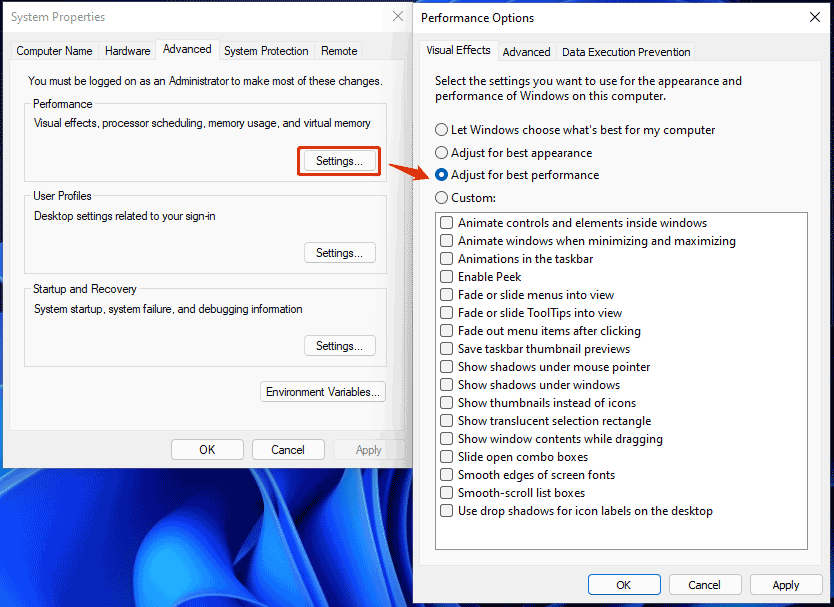
Windows 11 tweaks for better performance are your key to unlocking a smoother, faster computing experience. This guide dives deep into optimizing every aspect of your Windows 11 setup, from system-wide adjustments to hardware considerations. We’ll explore practical strategies, from disabling unnecessary startup programs to managing background processes, to ensure your PC runs at its absolute best.
Imagine effortlessly navigating through your applications, launching programs in a flash, and experiencing minimal lag. This detailed guide provides the knowledge and actionable steps to achieve just that. We’ll cover everything from simple system settings adjustments to advanced registry tweaks, with a focus on both practical improvements and understanding the potential risks.
System-Wide Tweaks for Enhanced Windows 11 Performance
Fine-tuning your Windows 11 setup can significantly impact its responsiveness and overall performance. This article delves into several system-wide adjustments, offering practical steps to optimize your system. From tweaking startup programs to adjusting power plans, these techniques empower you to gain a noticeable performance boost.
System Settings for Performance Optimization
Optimizing key system settings can lead to improved responsiveness and a smoother user experience. This table highlights crucial settings and their recommended adjustments.
| Setting Name | Description | Recommended Adjustment |
|---|---|---|
| Startup Programs | Applications and services automatically launched at boot-up. | Disable or delay unnecessary programs to shorten boot times. |
| Background Apps | Applications running in the background. | Reduce the number of background applications by limiting unnecessary processes. |
| Power Plans | Control how your PC manages power usage. | Switch to a performance-oriented power plan for maximum responsiveness. |
| Display Settings | Graphics and screen resolution settings. | Optimize settings for performance, considering your monitor’s capabilities. |
| System Services | Background processes managed by Windows. | Disable or adjust services that are not critical for your usage. |
Disabling Startup Programs
Startup programs can significantly affect boot times. Disabling or delaying unnecessary programs can substantially improve system responsiveness.
- Open Task Manager. Press Ctrl+Shift+Esc to launch Task Manager.
- Navigate to the Startup tab. In the Task Manager, click on the “Startup” tab.
- Identify and disable unnecessary programs. Review the list of programs loading at startup. Disable any program you don’t need to launch automatically. Select the program and click “Disable.” You can also choose to delay the startup of some applications.
- Confirm changes. Click “OK” to save the changes.
Disabling Unnecessary Services
Many services run in the background, consuming resources. Disabling unnecessary services can free up system resources, leading to improved performance.
Note that disabling services can potentially impact specific system functions. Carefully review the description of each service before disabling it.
- Open Services. Search for “services” in the Start Menu and open the Services application.
- Identify and disable services. Review the list of services. Disable those you don’t actively use, but only after carefully researching their impact on your system.
- Confirm changes. Click “OK” to save the changes. Restart your computer for the changes to take effect.
Utilizing Task Manager for Performance Analysis
Task Manager is a powerful tool for monitoring and managing system resources. It allows you to identify resource-intensive applications and terminate them if needed.
- Open Task Manager. Press Ctrl+Shift+Esc to open Task Manager.
- Monitor resource usage. Observe the processes and their CPU, memory, and disk usage.
- Identify resource hogs. Look for applications with high CPU or memory usage.
- Close resource-intensive applications. Right-click on the offending process and select “End task.” Be cautious and only close applications that you’re certain are unnecessary.
Adjusting Power Plans
Different power plans prioritize either battery life or performance. Choosing the right plan can significantly affect system responsiveness.
A performance-oriented power plan may lead to higher energy consumption, but it will generally improve system responsiveness.
- Access power options. Search for “power options” in the Start Menu and open the Power & sleep settings.
- Select a performance plan. Choose a plan optimized for performance, like “High Performance.” Note that other plans may be more suitable for certain scenarios.
Performance-Focused Apps
Optimizing performance in Windows 11 isn’t just about system-wide tweaks; it’s also crucial to understand how individual applications impact your system. This section dives into performance-hungry apps and strategies to fine-tune their resource consumption for a smoother user experience. We’ll examine how to configure resource allocation, compare different application settings, and delve into managing background processes.Resource allocation plays a key role in the performance of individual applications.
Tweaking Windows 11 for better performance is a rewarding process. Sometimes, though, a crucial aspect of optimizing your system involves converting images to HTML formats for seamless web integration. Tools like image to html converters can be really helpful in this regard. Ultimately, understanding these techniques allows you to achieve a more streamlined and efficient Windows 11 experience.
By understanding how CPU, RAM, and GPU resources are consumed, we can proactively optimize performance and prevent bottlenecks. A well-managed resource allocation strategy can result in a significant improvement in application responsiveness and overall system efficiency.
Identifying Performance-Impacting Applications
Common culprits for performance issues include video editing software, 3D modeling programs, and demanding game titles. These applications frequently utilize substantial system resources, potentially leading to slowdowns or freezes.
Optimizing Application Usage
Several strategies can enhance the performance of these resource-intensive applications. For instance, using a dedicated graphics card (GPU) can drastically improve performance for tasks like video editing or gaming. Also, adjusting the video settings in games can reduce the load on the GPU and improve frame rates.
Configuring System Resource Allocation
Task Manager provides a detailed view of current resource usage. Monitoring the CPU, RAM, and GPU usage of different applications allows for targeted adjustments. For instance, if a specific application is consistently using high CPU resources, you can investigate if the application is actively using multiple cores or if the code is inefficient. Similar monitoring and adjustments can be applied to RAM and GPU usage.
Comparing Application Settings for Enhanced Performance
The following table Artikels various settings for common performance-focused applications and how adjustments can improve system performance.
| Application | Setting | Impact | Recommended Value/Action |
|---|---|---|---|
| Video Editing Software (e.g., Adobe Premiere Pro) | Video Resolution | Higher resolution consumes more GPU resources. | Use the native resolution of your display or a slightly lower resolution. |
| 3D Modeling Software (e.g., Blender) | Render Settings | Complex renderings significantly impact CPU and GPU usage. | Adjust render settings to balance quality and performance. Use lower resolution settings if needed. |
| Gaming Applications | Graphics Settings | High graphics settings require substantial GPU power. | Adjust graphics settings to balance visual quality and performance. Try medium settings for optimal balance. |
Utilizing App-Specific Settings
Many applications offer performance settings to control resource allocation. Take, for example, a video editing application. Reducing the resolution of the video being edited will significantly decrease the demand on the GPU, allowing for a smoother editing experience. Similarly, in gaming applications, adjusting the graphics settings to lower resolutions or lower detail levels can lead to substantial performance gains.
This fine-tuning of application-specific settings allows for optimized resource utilization, directly improving overall system performance.
Managing Background Processes
Background processes can consume considerable system resources, affecting overall performance. Using Task Manager to identify and end unnecessary background processes can significantly improve performance. For instance, if a program is consuming a large amount of RAM or CPU but isn’t actively in use, ending it can release these resources.
Storage Optimization: Windows 11 Tweaks For Better Performance
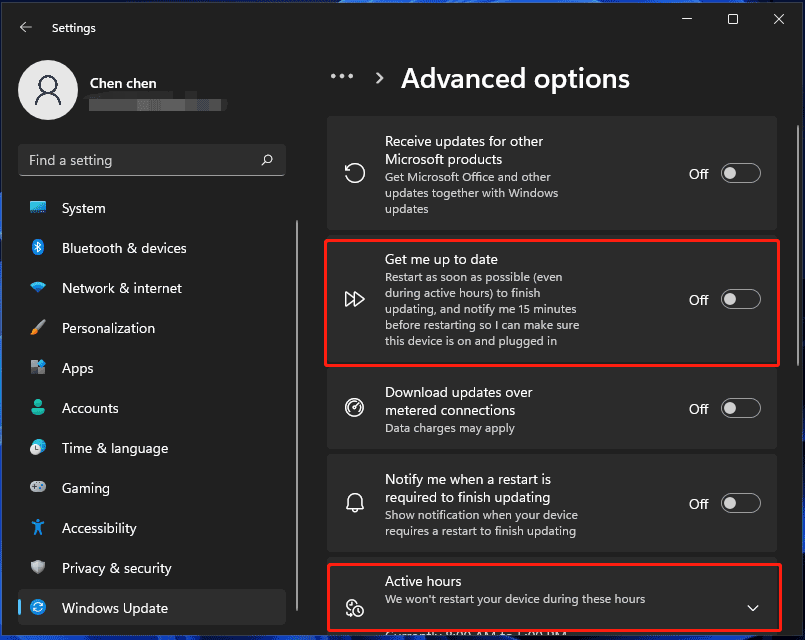
Windows 11’s performance is significantly impacted by how efficiently your storage is managed. Optimizing disk space and file organization is crucial for a smoother user experience, preventing slowdowns, and ensuring programs run efficiently. This section delves into practical strategies to achieve optimal storage performance.Proper storage management involves more than just having ample space; it encompasses smart file organization and utilizing built-in tools for efficient cleanup.
A well-organized storage system ensures quick access to files, minimizing wait times and maximizing productivity.
Disk Space Optimization and File Organization, Windows 11 tweaks for better performance
Efficient file organization directly affects system performance. A well-structured file system allows Windows 11 to quickly locate and access data, avoiding unnecessary searches. Employing folders, subfolders, and a consistent naming convention enhances file management, allowing for easy retrieval and reducing clutter.
Defragmentation Techniques in Windows 11
Defragmentation rearranges fragmented files on a hard drive, improving access speed. While solid-state drives (SSDs) are less susceptible to fragmentation than traditional hard disk drives (HDDs), defragmentation can still offer minor performance improvements on HDDs in specific scenarios. However, modern SSDs generally don’t benefit from defragmentation.
Disk Cleanup Tools and Features
Windows 11 provides built-in disk cleanup tools that automatically identify and remove unnecessary files. These tools can significantly free up disk space, boosting system performance. Regular use of disk cleanup tools can prevent storage bottlenecks and keep your system running smoothly.
Comparison of Disk Cleanup Tools
Windows 11’s built-in Disk Cleanup tool is a comprehensive and user-friendly solution for removing temporary files, unused system files, and other unnecessary data. Third-party disk cleanup tools may offer advanced features but often require additional software installation and configuration. The built-in tool usually provides a sufficient level of optimization for average users.
Summary of Storage Optimization Tips
| Tip | Action | Benefit |
|---|---|---|
| Organize Files | Use a logical folder structure and consistent naming conventions. | Faster file access and reduced clutter. |
| Regular Disk Cleanup | Utilize the built-in Windows Disk Cleanup tool. | Free up disk space and improve performance. |
| Monitor Disk Space | Keep an eye on disk space usage. | Prevent performance bottlenecks and potential crashes. |
| Consider Defragmentation (HDDs only) | Defragment your hard drive if needed. | Potential minor performance boost on HDDs, but not essential for SSDs. |
Hardware Considerations
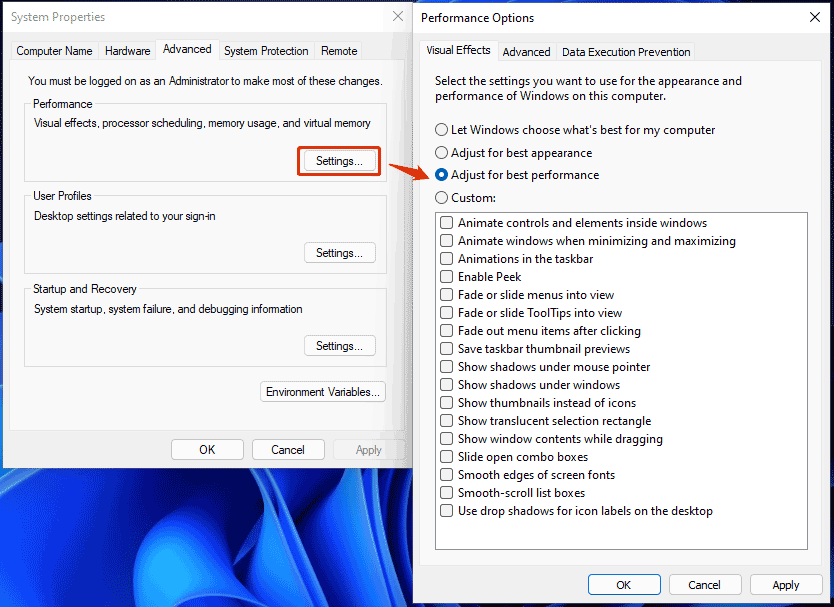
Optimizing Windows 11 performance hinges on understanding and addressing hardware limitations. A powerful CPU, ample RAM, and a capable GPU form the bedrock of a smooth user experience. This section delves into the influence of these components, how to identify bottlenecks, and strategies for enhancing your system’s capabilities.Hardware components significantly impact Windows 11 performance. The central processing unit (CPU), random access memory (RAM), and graphics processing unit (GPU) all play critical roles in system responsiveness and efficiency.
A powerful CPU handles tasks quickly, while sufficient RAM allows the system to run multiple applications concurrently without slowing down. A high-performance GPU is essential for graphics-intensive tasks, such as gaming and video editing.
CPU Impact on Performance
The CPU’s processing power directly affects the speed at which Windows 11 executes tasks. A faster CPU can handle complex operations and multiple applications simultaneously without significant performance lags. Conversely, an underpowered CPU may struggle with demanding applications, resulting in slowdowns and freezes. Identifying a CPU bottleneck involves monitoring system performance during demanding tasks. Tools like Task Manager provide insight into CPU utilization.
High CPU usage during routine operations suggests a potential bottleneck.
RAM and Performance
Sufficient RAM is crucial for smooth multitasking. Insufficient RAM forces Windows 11 to use virtual memory, a slower storage-based alternative to RAM, which significantly degrades performance. Monitoring RAM usage during intensive tasks using Task Manager is essential for identifying potential limitations. A low amount of free RAM may lead to noticeable slowdowns.
GPU and Performance
The GPU plays a vital role in handling graphics-related tasks. A high-performance GPU ensures smooth visuals and fast rendering times, particularly for video editing, gaming, and high-resolution displays. Applications with heavy graphics requirements will benefit from a dedicated GPU. Using Task Manager to monitor GPU utilization during demanding applications is a practical method to identify a potential bottleneck.
High GPU usage indicates potential limitations in your system’s graphics processing capabilities.
Identifying and Addressing Hardware Bottlenecks
To pinpoint bottlenecks, observe system performance during demanding tasks. Monitor CPU, RAM, and GPU usage using Task Manager. High utilization rates indicate potential limitations. Consider running diagnostic tools provided by the manufacturer to assess the health and stability of each component. If performance issues persist, consulting with a qualified technician can provide additional insights and troubleshooting options.
Hardware Upgrade Recommendations
| Component | Upgrade Recommendation | Potential Improvement ||—|—|—|| CPU | Upgrade to a newer, more powerful processor | Increased responsiveness, smoother multitasking || RAM | Increase RAM capacity | Enhanced multitasking capabilities, reduced lag || GPU (if applicable) | Upgrade to a more powerful graphics card | Improved graphics performance, enhanced gaming experience || Storage | SSD or NVMe SSD for faster boot times and application loading | Significant improvement in responsiveness and boot times |
Ever wanted to supercharge your Windows 11 performance? There are some surprisingly simple tweaks you can make. While the recent accusations against a Singaporean man involved in alleged chip fraud, leveraging silicon valley and global connections, highlighting the intricate workings of the tech world , it’s important to focus on optimizing your own system. Things like adjusting power settings and disabling unnecessary startup programs can make a noticeable difference.
These tweaks can lead to a more responsive and efficient Windows 11 experience.
Maintaining Optimal Hardware Temperatures
Maintaining optimal temperatures for hardware components is crucial to prevent performance degradation and potential damage. High temperatures can lead to throttling, where the system reduces performance to prevent overheating. Monitoring temperatures using dedicated software or system utilities is essential to detect and address overheating issues. Consistent high temperatures could indicate a need for better cooling solutions.
Monitoring and Managing System Temperatures
Monitoring system temperatures using dedicated software or system utilities is crucial for proactive maintenance. These tools provide real-time readings for CPU, GPU, and other critical components. Regular monitoring allows you to identify potential temperature spikes and take preventative measures. Software like HWMonitor or MSI Afterburner can provide detailed temperature information and further insights. Troubleshooting high temperatures involves assessing cooling solutions (fans, heatsinks) and ensuring adequate airflow around components.
Advanced Tweaks (Optional)
Fine-tuning your Windows 11 system through registry tweaks can yield noticeable performance improvements, but these modifications carry inherent risks. Careless changes can lead to system instability or data loss. This section explores advanced registry tweaks, highlighting potential risks and providing essential backup procedures.Registry tweaks, when executed correctly, can optimize Windows 11’s internal processes. They often target areas like startup applications, driver configurations, and system services to streamline operations.
However, improper adjustments can cause unexpected behavior or incompatibility issues with installed programs.
Registry Tweaks for Performance
Modifying the Windows registry directly can potentially enhance performance, but it’s crucial to proceed with extreme caution. Incorrect modifications can lead to system instability or data loss. Therefore, comprehensive backup strategies are paramount.
Tweaking Windows 11 for better performance can be a game-changer, but sometimes you need to optimize your marketing strategies as well. For example, if you’re looking to attract more potential customers, exploring the best lead generation tools, like best lead generation tools , is crucial. Ultimately, a faster, more responsive Windows 11 experience will allow you to focus on your business tasks and projects more efficiently.
- Registry tweaks offer the potential for significant performance gains by optimizing various system components.
- However, improper modifications can cause unforeseen issues or conflicts with installed software, requiring extensive troubleshooting or even reinstalling the operating system.
Advanced Registry Tweaks for Windows 11
This section presents three advanced registry tweaks, showcasing potential impacts and inherent risks. Always back up the registry before making any changes.
| Tweak Description | Impact | Potential Risks |
|---|---|---|
| Disabling unnecessary startup applications. | Can reduce startup time and improve overall system responsiveness. | Incorrectly disabling essential applications can lead to system malfunctions or application failures. Carefully research applications before disabling. |
| Adjusting power settings for specific hardware components. | Potentially optimize energy consumption and performance depending on the hardware. | Incorrect adjustments can result in reduced performance, overheating issues, or hardware incompatibility. |
| Modifying driver settings for better hardware integration. | Can optimize driver behavior for improved performance and stability. | Incorrect changes can lead to driver conflicts, system instability, or device malfunction. |
Registry Backup Procedure
Backing up the registry before making any changes is critical. A corrupted registry can lead to a non-bootable system or data loss.
Always create a backup of the registry before making any changes.
To back up the registry:
- Open the Run dialog box (Windows key + R).
- Type “regedit” and press Enter to open the Registry Editor.
- Click “File” > “Export” to save a copy of the registry.
- Choose a location to save the backup file and provide a descriptive name (e.g., “RegistryBackup_2024-10-27”).
Advanced Performance Monitoring Tools
Various tools provide insight into Windows 11 performance. Monitoring CPU usage, disk activity, and memory allocation helps identify bottlenecks.
- Resource Monitor is a built-in tool that displays real-time information about CPU, memory, disk, and network usage.
- Process Explorer is a third-party tool offering a detailed view of running processes, enabling identification of resource-intensive applications.
- Performance Monitor allows graphical visualization of key performance metrics over time, enabling identification of trends and patterns.
Troubleshooting and Error Resolution
Optimizing Windows 11 for peak performance often involves more than just tweaking settings. Understanding and resolving performance issues is crucial for a smooth user experience. This section delves into common problems, their causes, and effective solutions. A systematic approach to troubleshooting is key to identifying and fixing performance bottlenecks.Troubleshooting performance issues requires a methodical approach, starting with basic checks and progressing to more advanced diagnostics.
By understanding the common causes of performance problems and the steps to resolve them, you can ensure a responsive and efficient Windows 11 experience.
Common Windows 11 Performance Issues and Solutions
Troubleshooting performance problems in Windows 11 often begins with identifying the specific issue. The table below summarizes some common problems and their potential solutions.
| Issue | Possible Causes | Solutions |
|---|---|---|
| Slow boot times | Large startup programs, corrupted system files, excessive background processes | Disable unnecessary startup programs, scan for and repair corrupted system files, use Task Manager to manage background processes. |
| Slow application loading | Insufficient RAM, outdated drivers, disk fragmentation, high CPU usage | Increase RAM, update drivers, defragment hard drives, identify and close resource-intensive applications. |
| Lagging or freezing during tasks | High CPU usage, insufficient RAM, overheating, disk issues, outdated or conflicting drivers | Close unnecessary programs, increase RAM, ensure proper ventilation, check for disk errors, update drivers. |
| Poor internet speed | Network congestion, outdated network drivers, VPN issues, conflicting software | Check for network congestion, update network drivers, disable VPN if not required, check for conflicting software. |
| System instability | Corrupted system files, conflicting drivers, outdated software, malware | Scan for and repair corrupted system files, update drivers and software, run a malware scan. |
Common Performance-Related Errors in Windows 11
Identifying the specific error message associated with a performance issue is crucial. Here are three common errors and their solutions.
- Error: “System resources are low.” This error often occurs when your system’s resources (RAM, CPU, disk space) are stretched too thin. Possible solutions include closing unnecessary programs, increasing available RAM (if possible), and optimizing disk space by deleting unnecessary files.
- Error: “Driver error.” Driver errors are frequent culprits behind performance issues. This could indicate outdated, corrupted, or conflicting drivers. Solutions often involve updating drivers through Device Manager, ensuring compatibility with the latest hardware, or uninstalling and reinstalling drivers.
- Error: “The program can’t start because the application configuration is incorrect.” This error suggests that there is a mismatch between the application and the system’s configuration. Solutions may involve checking application requirements, ensuring the application is compatible with Windows 11, or verifying necessary system files and components.
Troubleshooting Driver-Related Performance Problems
Driver issues are a significant source of performance problems in Windows 11. Driver problems can manifest in various ways, such as slow response times, unexpected crashes, or system instability. A crucial step is to ensure that all drivers are up-to-date.
- Identify the problematic driver. Use Device Manager to pinpoint the specific device causing the performance issues. Look for yellow exclamation points or other warning signs next to device entries.
- Update or reinstall drivers. The Windows Update feature can often automatically update drivers, but manually checking for and installing the latest versions from the manufacturer’s website is highly recommended.
- Rollback drivers. If an updated driver causes performance problems, reverting to a previous version might resolve the issue.
- Check for driver conflicts. Ensure that the drivers are compatible with each other and with the system’s configuration.
Diagnosing and Fixing Performance Issues Related to Windows 11 Updates
Windows 11 updates, while often crucial for security and stability, can sometimes introduce performance issues. Addressing these issues effectively involves understanding the update’s impact on system resources.
- Check for pending updates. Installing pending updates can sometimes resolve issues stemming from previous updates.
- Uninstall recent updates. If a specific update causes performance problems, uninstalling that update might be necessary. Remember to do this cautiously, and carefully evaluate the impact on system stability.
- Restart the system after updates. A restart after an update is crucial for ensuring all changes take effect.
- Check for update compatibility issues. Ensure the update is compatible with existing hardware and software components.
Systematically Resolving Performance Problems in Windows 11
A systematic approach to troubleshooting performance problems involves a series of steps. This approach ensures a structured and effective resolution process.
- Identify the symptoms. Clearly define the specific performance issues you’re experiencing.
- Check for basic troubleshooting steps. Perform basic checks, such as restarting the system, checking for disk errors, and running a malware scan.
- Check for hardware issues. Verify the hardware’s functionality, such as RAM and disk space.
- Update drivers and software. Ensure that all drivers and software are up-to-date.
- Check for conflicts. Identify and resolve any conflicts between applications, drivers, or services.
- Use diagnostic tools. Utilize Windows’ built-in tools to identify and resolve performance problems.
Last Point
In conclusion, optimizing Windows 11 performance is a multifaceted process, encompassing various aspects from system tweaks to hardware considerations. By implementing the strategies Artikeld in this comprehensive guide, you can significantly enhance your PC’s responsiveness and overall efficiency. Remember to prioritize safety when performing advanced tweaks and always back up crucial data before making significant changes. Your Windows 11 experience is now in your hands!